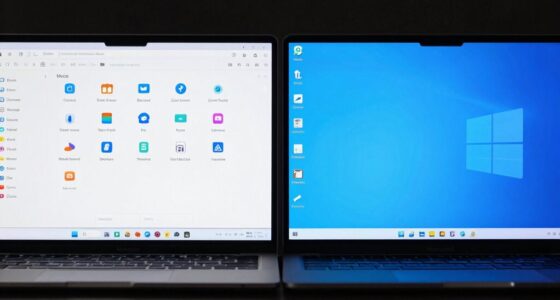

If your 4K screen looks small or hard to read, it’s likely due to improper scaling settings, not your eyes. Your operating system adjusts the size of text and icons to match the high resolution, but if these settings aren’t optimized, everything can appear tiny or blurry. By tweaking your display and scaling options, you can make everything look sharper and easier to see. Keep going to discover how to get the most out of your 4K display.
Key Takeaways
- Proper scaling adjusts UI elements to appear correctly sized and readable on 4K displays.
- Incorrect or default scaling settings can make icons and text appear too small or blurry.
- Operating systems use algorithms to scale images smoothly, affecting perceived size and clarity.
- Adjusting scaling options in display settings helps achieve a balanced, natural look for 4K screens.
- Ensuring your display resolution matches the native 4K and updating drivers optimize visual performance.
Understanding Screen Resolution and Size
Understanding screen resolution and size is essential for grasping how 4K scaling issues arise. You need to recognize that resolution refers to the number of pixels a display has—4K offers about 8.3 million pixels, providing sharp images. Screen size, however, indicates the physical dimensions, often measured diagonally. A 27-inch 4K monitor and a 55-inch 4K TV both have the same pixel count but differ vastly in size. This difference impacts how images appear; smaller screens pack pixels closely, making details crisp, while larger screens spread pixels out, potentially causing images to look less sharp. Knowing this helps you understand why scaling becomes necessary to guarantee text and icons remain legible and images remain clear across various screens.
The Role of Scaling in Display Performance

Have you ever noticed how text and icons sometimes appear tiny or blurry on a 4K display? That’s because scaling plays a vital role in how your screen renders images and UI elements. Proper scaling ensures these elements appear sharp, readable, and correctly sized, despite the high pixel density. Without it, your display can look pixelated or too small, making it hard to use. Scaling adjusts the size of text, icons, and images, balancing clarity with usability. It also impacts performance, since inefficient scaling can cause lag or blurry visuals. Understanding how scaling works helps you troubleshoot display issues and optimize your viewing experience. Here’s what you need to know:
- How scaling affects sharpness
- The difference between hardware and software scaling
- Impact on system performance
- Common scaling challenges
How Operating Systems Manage Image Size
Operating systems play a crucial role in managing image sizes on high-resolution displays by applying scaling techniques that guarantee visuals look sharp and appropriately sized. They interpret pixel data, adjusting how images and text appear to match your screen’s resolution. This process prevents tiny, unreadable elements or overly large icons, maintaining a balanced view. Operating systems use algorithms to scale images smoothly, preserving detail without blurring. They also adapt interface elements to ensure consistency across different display sizes.
| Resolution Challenges | User Experience Impact |
|---|---|
| Tiny text feels unreadable | Frustration and eye strain |
| Large icons look out of place | Loss of visual harmony |
| Inconsistent element sizes | Distraction and confusion |
Adjusting Settings for Optimal 4K Viewing
To enjoy the full benefits of your 4K display, adjusting the right settings is key. Start by calibrating your monitor’s resolution and refresh rate for smooth visuals. Set your scaling options to ensure text and images appear crisp without looking tiny or oversized. Adjust brightness, contrast, and color settings for accurate, vibrant images. Enable sharpness and anti-aliasing features to improve detail clarity. Make sure your graphics card’s settings match your display’s native resolution and enable any built-in scaling options. Don’t forget to update your drivers regularly for ideal performance.
Optimize your 4K display by calibrating resolution, adjusting brightness, and enabling anti-aliasing for vibrant, crisp visuals.
- Calibrate resolution and refresh rate
- Adjust scaling preferences for clarity
- Fine-tune brightness and contrast
- Enable anti-aliasing and sharpness features
Common Mistakes That Make 4K Screens Look Smaller
One common mistake that makes your 4K screen appear smaller is using incorrect scaling settings. When you set scaling too low, UI elements and text become tiny, creating the illusion of a smaller display. Conversely, setting scaling too high can cause elements to appear oversized or blurry, diminishing clarity and making the screen seem less expansive. Many users stick with default scaling options without adjusting them for their specific resolution or viewing distance, which hampers the full 4K experience. Additionally, ignoring the recommended scaling settings for your operating system or display can lead to misaligned graphics and poor image quality. To avoid this, ensure your scaling is optimized for your display size and personal comfort, allowing your 4K to truly shine without appearing artificially small.
Frequently Asked Questions
Can Scaling Issues Affect Gaming Performance on 4K Screens?
Yes, scaling issues can affect your gaming performance on 4K screens. When your system struggles to properly adapt the game’s resolution, you might experience lag, stuttering, or reduced visual quality. These problems occur because the graphics card or display settings aren’t optimized for the high resolution. To improve performance, make sure your GPU drivers are up to date, and adjust scaling options or use native 4K settings for the best experience.
Do All Applications Display Correctly on 4K Displays Without Adjustments?
Not all applications display correctly on 4K displays without adjustments. Many older or poorly optimized apps may appear tiny or blurry, requiring you to tweak scaling settings or use compatibility modes. Modern apps generally adapt well, but you might still need to manually adjust DPI or resolution settings for the best experience. To guarantee everything looks right, check your display settings and update your software regularly.
How Does Screen Size Influence Perceived Image Quality at 4K Resolution?
Think of your screen as a canvas; the larger the canvas, the more space you have for detail. On a big 4K display, images can look sharper and more immersive. But if your screen’s small, the pixels are packed tightly, making everything appear crisp but possibly less expansive. Your perception of quality depends on size—bigger screens highlight detail, while smaller ones emphasize clarity within limited space.
Are There Differences in Scaling Options Across Windows, Mac, and Linux?
Yes, there are differences in scaling options across Windows, Mac, and Linux. Windows offers flexible scaling settings that you can customize for each display, making things larger or smaller as needed. Macs typically use a more streamlined approach with scaled resolutions that balance clarity and size. Linux varies depending on the distribution and desktop environment, often providing advanced options through settings or third-party tools. You should explore each platform’s display settings for ideal results.
What Hardware Limitations Can Cause 4K Screens to Appear Smaller?
You might think your 4K screen is small because of hardware limitations like outdated graphics cards or insufficient RAM, which struggle to render high-resolution images smoothly. Older GPUs may lack the power to handle 4K scaling properly, making icons and text appear tiny. Upgrading your GPU or optimizing your system can improve clarity and size, ensuring your 4K display looks just as impressive as it should.
Conclusion
Now that you know how scaling affects your 4K screen, it’s like adjusting the zoom on a camera to get the perfect shot. When you tweak your settings, images become crisp and inviting, filling your view with vibrant detail instead of feeling tiny or distant. Think of it as resizing a canvas until the artwork truly comes alive — with just a little fine-tuning, your display will feel expansive and immersive, not small or underwhelming.