
Ultrawide resolution numbers like 3440×1440 or 2560×1080 tell you how many pixels are across horizontally and vertically, affecting image sharpness and detail. Higher numbers mean clearer images, but knowing the aspect ratio (like 21:9) helps you understand the display’s shape and whether content will fit well. Pixels per inch (PPI) also matter for sharpness. If you keep exploring, you’ll learn how these specs can help you pick the right monitor for your needs.
Key Takeaways
- Resolution numbers like 3440×1440 specify width and height in pixels, indicating image sharpness and detail.
- The first number is horizontal pixels (width), and the second is vertical pixels (height).
- Higher resolutions provide clearer images but require more powerful hardware to run smoothly.
- Common ultrawide resolutions include 2560×1080, 3440×1440, and 3840×1600, each offering different clarity and workspace.
- Understanding aspect ratios (e.g., 21:9) helps determine the display’s shape and compatibility with content.
Top picks for "ultrawide resolution number"
Open Amazon search results for this keyword.
As an affiliate, we earn on qualifying purchases.
What Do Resolution Numbers Actually Mean?
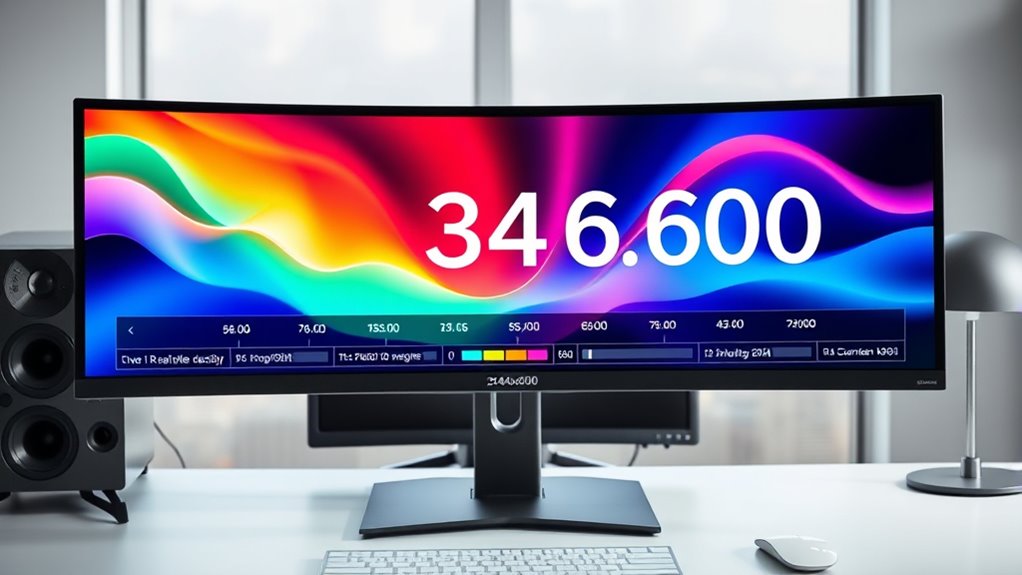
Have you ever wondered what those numbers in resolution specs really mean? When you see something like 3440×1440, it represents the number of pixels horizontally and vertically on your screen. The first number, 3440, indicates the width, while 1440 shows the height. These pixel counts determine how sharp or detailed the image appears; higher numbers mean more pixels, which generally results in clearer visuals. Resolution affects everything from text clarity to image quality. It’s a key factor in how your monitor displays content, especially on ultrawide screens where extra width provides more workspace. Understanding these numbers helps you choose the right display for your needs, whether for gaming, work, or multimedia. It’s all about matching the resolution with your desired visual experience.
Common Ultrawide Resolutions Explained
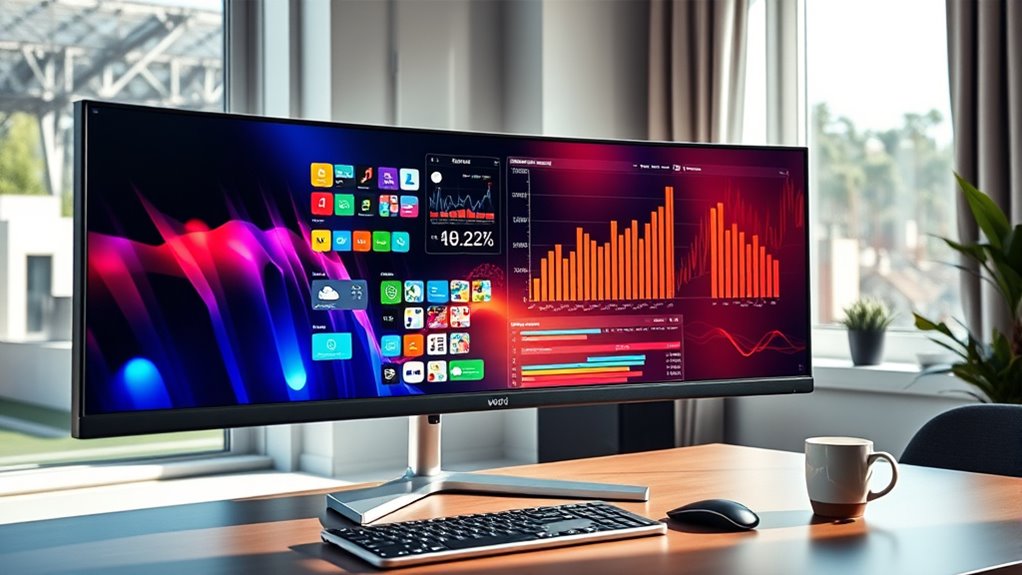
Ultrawide monitors come in several common resolutions that cater to different needs and preferences. The most popular is 3440×1440, offering a sharp picture with more screen space without overwhelming your graphics card. It’s ideal for multitasking, gaming, and creative work. Another common resolution is 2560×1080, which provides a wider view than standard 1080p screens but at a lower pixel count, making it more affordable and easier to run. Then there’s 3840×1600, delivering an ultra-wide experience with higher clarity, perfect if you want a premium display for professional tasks. Each resolution impacts the overall sharpness, performance, and affordability, so understanding these options helps you pick the right monitor for your specific use, ensuring you get the best experience without confusion.
Aspect Ratios and Their Impact on Display

Understanding aspect ratios helps you see how wide your display will look and how it affects your visuals. Choosing between wide and ultra-wide ratios influences compatibility with your devices and software. Being aware of these differences ensures you get the best experience for your needs.
Wide vs. Ultra-wide
When comparing display aspect ratios, it’s clear that wide and ultra-wide screens serve different needs by shaping how content is viewed and experienced. Wide screens, typically with a 16:9 ratio, are versatile and suit most media, offering a familiar viewing experience. They’re ideal for watching videos, browsing, and everyday tasks. Ultra-wide screens, often with a 21:9 or even 32:9 ratio, provide a broader field of view, making them perfect for multitasking, gaming, and immersive work environments. They allow you to see more content side-by-side without switching windows. However, these screens can also introduce compatibility issues with some apps or videos optimized for standard ratios. Your choice depends on whether you prefer a traditional, balanced display or a more expansive, panoramic experience.
Ratios and Visuals
Aspect ratios directly influence how visuals are displayed and perceived on your screen. They determine the shape and proportion of the image, affecting everything from movies and games to productivity tasks. A wider aspect ratio, like 21:9, provides more horizontal space, making it easier to multitask or enjoy immersive videos. Conversely, a standard 16:9 aspect ratio offers a familiar, balanced view suited for most content. Your choice impacts how visuals fill the screen; an incompatible ratio can cause black bars or stretched images. Understanding the aspect ratio helps you select a display that aligns with your usage, ensuring content looks natural and avoids distortion. Recognizing these ratios allows you to predict how visuals will appear, making sure you get the experience you want without surprises.
Compatibility Considerations
Choosing the right aspect ratio is essential because it directly affects how compatible your display will be with various content and devices. If you select an aspect ratio that doesn’t match your source material, you might experience black bars, image stretching, or cropping. For example, many movies and games are optimized for specific ratios like 16:9 or 21:9, so mismatched ratios can cause display issues. Additionally, some older devices or software may not support ultrawide formats, limiting your usability. Compatibility also impacts your workflow—certain applications may not work well with ultra-wide screens, requiring adjustments or workarounds. To avoid frustration, check your content sources, device support, and software compatibility before choosing an ultrawide aspect ratio. This ensures smooth, seamless viewing across all your devices and media.
PPI and Pixel Density: Why It Matters
PPI, or pixels per inch, directly influences how sharp and clear your display appears. Higher PPI means more pixels packed into each inch, resulting in crisper images and smoother text. When you choose a monitor with a higher pixel density, your viewing experience improves, especially for detailed work like photo editing or gaming. It reduces pixelation and makes everything look more lifelike. Conversely, a lower PPI can cause images to appear pixelated or blurry, especially on larger screens. Understanding PPI helps you gauge true display quality without getting lost in confusing specs. It’s essential for making informed decisions about what ultrawide monitor suits your needs. By paying attention to pixel density, you ensure your investment delivers sharp, clear visuals every time.
Higher PPI ensures sharper images and clearer text, enhancing your display quality and making detailed work more enjoyable.
- Better image clarity and detail
- Reduced pixelation on large screens
- More accurate text rendering
- Enhanced overall display quality
Comparing Ultrawide Monitors: Which Is Better?
When comparing ultrawide monitors, you should consider screen size variations and aspect ratio differences to find what suits your workspace. Display quality features like color accuracy and refresh rates also impact how well the monitor performs for your needs. By examining these points, you’ll better determine which ultrawide monitor is the right fit for you.
Screen Size Variations
Screen size variations among ultrawide monitors substantially impact your viewing experience, making it essential to select the right width for your needs. Larger screens provide more workspace, ideal for multitasking, gaming, or creative work. Smaller ultrawides are easier to fit on desks and more portable, but may limit your viewing area. Consider your desk space and how you’ll use the monitor to find the best fit. Keep in mind that bigger isn’t always better if it overwhelms your setup. Also, your eye comfort and distance from the screen matter—too large might cause strain.
- Larger screens offer more workspace and immersion
- Smaller ultrawides fit better in compact setups
- Desk space influences your choice
- Balance size with comfort and usability
Aspect Ratio Differences
Choosing the right aspect ratio for your ultrawide monitor depends on how you plan to use it, as different ratios offer distinct advantages. A 21:9 aspect ratio provides a wider field of view, ideal for immersive gaming and multitasking, letting you see more side-by-side windows comfortably. A 32:9 ratio mimics dual monitors in a single screen, perfect for professional workflows like video editing or financial trading. Conversely, a 16:9 ratio is more traditional and compatible with most content and media. Keep in mind, wider ratios may require more powerful hardware and can sometimes introduce compatibility issues with certain apps. Ultimately, your preferred aspect ratio should match your primary tasks—whether it’s gaming, work, or entertainment—to maximize your ultrawide experience.
Display Quality Features
Display quality features determine how sharp, vibrant, and smooth your ultrawide experience feels, making them just as important as aspect ratio choices. These features influence your overall enjoyment and productivity, ensuring images look crisp and colors pop. When comparing monitors, consider resolution, panel type, refresh rate, and color accuracy. Higher resolutions, like 3440×1440 or 3840×1600, deliver sharper images. IPS panels provide better color accuracy and viewing angles, while TN panels are faster but less vibrant. A higher refresh rate (120Hz or more) offers smoother motion, ideal for gaming or fast-paced tasks. Color space coverage, such as sRGB or AdobeRGB, affects how true-to-life colors appear. Focusing on these features helps you find a monitor that balances visual quality and performance for your needs.
- Resolution and pixel density
- Panel type (IPS, TN, VA)
- Refresh rate and response time
- Color accuracy and coverage
How Resolution Affects Gaming and Multitasking
Higher resolutions can substantially enhance your gaming and multitasking experiences by providing sharper visuals and more workspace. With a higher resolution, games appear clearer, revealing details that make environments more immersive and realistic. This allows you to notice subtle textures and small objects, improving gameplay precision. For multitasking, extra screen real estate means you can have multiple windows open side by side without feeling cramped, boosting productivity. You can run spreadsheets, browse the web, or chat while gaming without constantly switching tabs. However, keep in mind that higher resolutions demand more from your graphics card and processor, which can impact performance if your hardware isn’t up to par. Overall, higher resolutions offer a richer, more detailed visual experience that benefits both gaming and multitasking when your system can handle it.
Understanding Refresh Rates and Resolution Compatibility
Understanding refresh rates and resolution compatibility helps you get the most out of your ultrawide display. You’ll want to know how different refresh rates work with various resolutions to avoid issues like screen tearing or stuttering. We’ll cover the basics and share tips to optimize your settings for smooth, clear visuals.
Refresh Rate Basics
Have you ever wondered how refresh rates impact your viewing experience, especially when paired with ultrawide resolutions? Refresh rate refers to how many times your monitor updates per second, measured in Hertz (Hz). A higher refresh rate delivers smoother motion, reducing blur and judder, which is especially noticeable in fast-paced games or videos. When choosing an ultrawide display, it’s key to match the refresh rate with your graphics card’s capabilities for ideal performance. Keep in mind that not all monitors support high refresh rates at ultra-wide resolutions, which can limit your experience.
- Higher refresh rates provide smoother visuals
- Compatibility depends on your GPU’s output
- Some ultrawide screens support 120Hz or more
- Balance refresh rate with resolution for best results
Compatibility With Resolutions
When selecting an ultrawide display, it’s important to take into account how your monitor’s resolution and refresh rate work together. Higher resolutions demand more from your graphics card, which can affect your achievable refresh rates. Not all monitors support every refresh rate at their native resolution, so check compatibility carefully. For example, a 3440×1440 monitor might support 100Hz but struggle at 120Hz. Conversely, some displays are limited to lower refresh rates at their highest resolutions. Make sure your GPU can handle the combination you want, or you might experience screen tearing or stuttering. Always verify both the resolution and refresh rate specifications to ensure they align with your system’s capabilities. This guarantees smooth visuals without unintended compromises.
Optimal Settings Tips
To get the best performance from your ultrawide monitor, you need to match your resolution with the appropriate refresh rate. This guarantees smooth visuals and prevents screen tearing or flickering. Higher resolutions often require lower refresh rates to maintain stability, while faster refresh rates are ideal for gaming or fast-paced tasks. Check your monitor’s specifications and your graphics card’s capabilities to find the ideal balance. Adjusting these settings in your display control panel can improve your experience considerably. Remember, not all combinations are supported, so verifying compatibility is key. Experiment with different settings to find what works best for your setup and use case. Here are some tips to help you maximize your display performance:
- Match resolution with supported refresh rates
- Use V-Sync or G-Sync to reduce tearing
- Lower resolution for higher refresh rates if needed
- Keep graphics drivers up to date
The Role of Screen Size in Resolution Choice
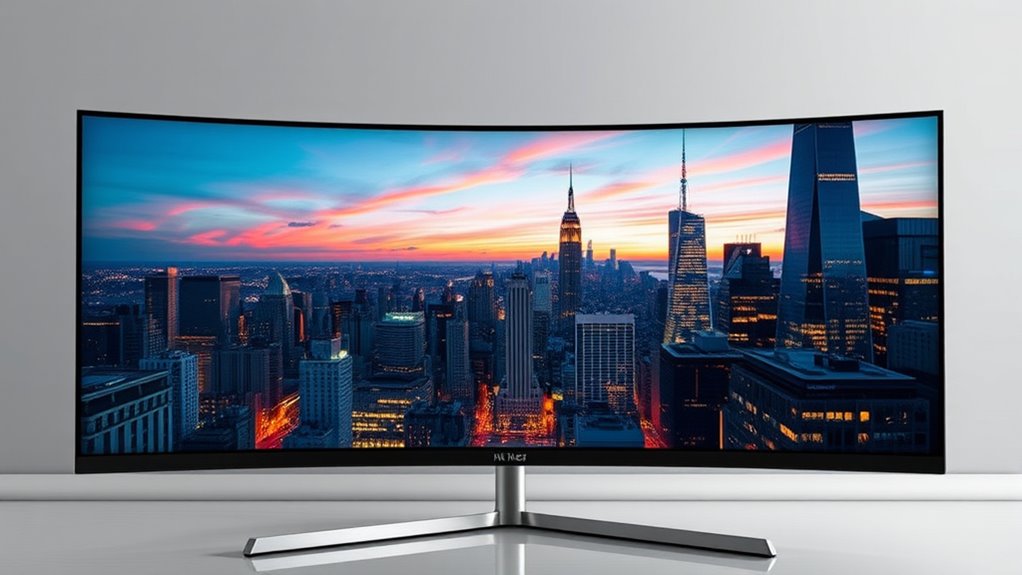
The size of your screen plays a crucial role in determining the ideal resolution, as larger displays demand higher pixel counts to maintain sharpness and clarity. If you have a wide monitor over 34 inches, a resolution like 3440×1440 or 3840×1600 helps prevent images from appearing pixelated or blurry. Smaller screens, such as 27 inches, can look sharp with resolutions like 2560×1440, but increasing to 4K (3840×2160) enhances detail. Higher resolutions on larger screens ensure text and images stay crisp at normal viewing distances. Conversely, on smaller displays, extremely high resolutions may not be noticeable and can tax your graphics hardware. Matching your screen size with an appropriate resolution ensures a balanced, clear, and comfortable viewing experience.
Future Trends in Ultrawide Display Technology

Advancements in display technology are rapidly driving the evolution of ultrawide monitors, promising even higher resolutions, better color accuracy, and faster refresh rates. Expect to see more monitors featuring 5K, 6K, or even higher resolutions, delivering sharper images and more detailed visuals. Improved panel technologies like OLED and Mini-LED will enhance contrast, black levels, and color vibrancy. As refresh rates increase, you’ll experience smoother motion, ideal for gaming and creative work. Additionally, innovations in curved screens and ultra-thin bezels will create more immersive experiences and sleek designs. These trends ensure ultrawide displays become more versatile, offering professional-grade color fidelity, seamless multitasking, and enhanced gaming capabilities. Staying ahead means watching for these technological leaps to get the most out of your setup.
- Higher resolutions like 5K and 6K become standard
- OLED and Mini-LED panels improve contrast and color
- Refresh rates reach 144Hz or more for smoother motion
- Sleek, curved designs enhance immersion and aesthetics
Tips for Picking the Right Ultrawide Monitor for You
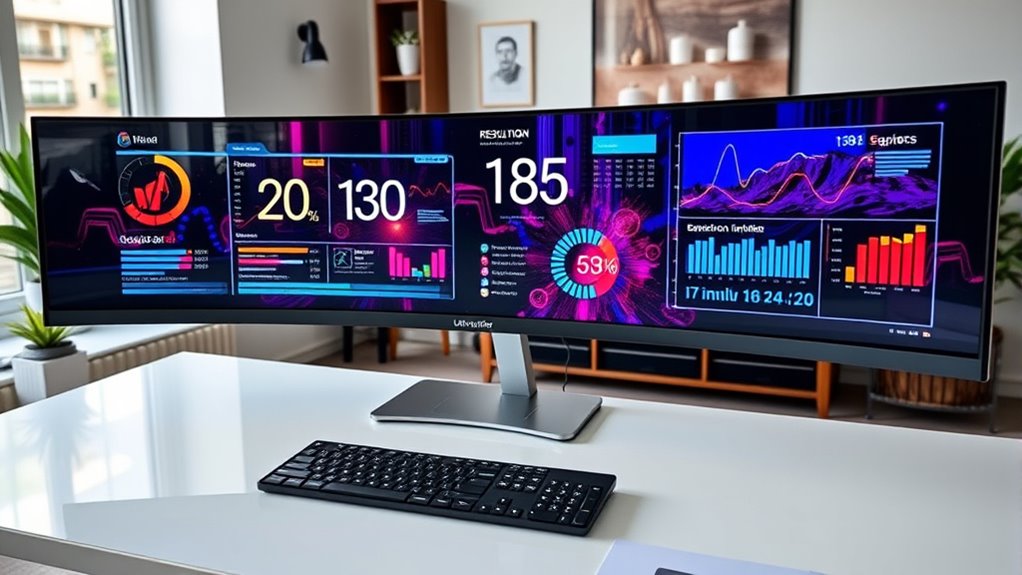
As display technology continues to improve with higher resolutions, better color accuracy, and faster refresh rates, choosing the right ultrawide monitor becomes even more important to match your specific needs. First, consider your primary use—are you gaming, working, or creative editing? For gaming, look for high refresh rates and low response times. If you’re into creative work, prioritize color accuracy and a wide color gamut. Think about size; larger screens offer more immersion but may require more desk space. Resolution matters too—higher resolutions provide sharper images, especially on bigger screens. Connectivity options like USB-C or Thunderbolt can simplify your setup. Finally, set a budget but avoid sacrificing essential features. A well-chosen ultrawide monitor enhances your experience, whether for work or play.
Frequently Asked Questions
How Does Resolution Impact Overall Visual Clarity?
Resolution directly impacts your visual clarity by determining how sharp and detailed images appear on your screen. Higher resolutions pack more pixels, making text crisper and visuals more refined, especially on ultrawide monitors. When resolution is lower, images may look blurry or pixelated, reducing your viewing experience. So, selecting a higher resolution guarantees you get clearer, more vibrant visuals, enhancing your overall productivity and entertainment.
What Is the Difference Between Resolution and Image Quality?
Resolution is the number of pixels on your screen, while image quality includes factors like color accuracy, contrast, and sharpness. Think of resolution as the pixel count behind a photo, and image quality as how realistic or vibrant that photo appears. Higher resolution can enhance clarity, but if color and contrast are poor, the overall image quality suffers. You need both to get a truly sharp, vivid display.
Can Higher Resolution Improve Gaming Performance?
Higher resolution can improve gaming visuals, making images sharper and more detailed, but it doesn’t necessarily boost performance. In fact, running games at higher resolutions demands more from your GPU, which can reduce frame rates and cause lag if your hardware isn’t powerful enough. So, while you’ll see better image quality, your gaming performance might suffer unless you upgrade your graphics card or optimize settings.
How Do I Choose the Best Resolution for My Workflow?
You should choose a resolution that balances your work needs and hardware capabilities. If you do detailed design or video editing, go for higher resolutions like 1440p or 4K for more screen real estate and clarity. For general tasks, a 1080p monitor might suffice. Consider your GPU’s power and your desk space too. Ultimately, pick a resolution that boosts productivity without overloading your system or causing discomfort.
Are Ultrawide Resolutions Compatible With All Graphics Cards?
Did you know that over 80% of modern graphics cards support ultrawide resolutions? Yes, most current GPUs are compatible, but it’s crucial to check your specific model. Some older or budget cards might struggle with higher ultrawide resolutions, causing performance issues. Always verify your graphics card’s specs before investing in an ultrawide monitor, ensuring smooth gameplay and productivity without compatibility hiccups.
Conclusion
Now that you’re armed with the facts, choosing the perfect ultrawide monitor becomes a walk in the park. Don’t let confusing specs throw you off—remember, understanding resolution numbers and display features helps you get exactly what you need. Keep your eye on future trends and consider your own use case. With all this knowledge, you’re ready to make a smart choice and avoid getting taken for a ride. Happy shopping!