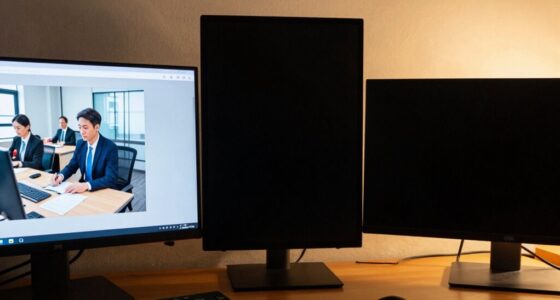
To judge text clarity before buying a monitor, check its resolution and pixel density, as higher values produce sharper text. Look for an IPS panel for better color accuracy and wide viewing angles, which help keep text crisp from different positions. Test the monitor in person if possible, inspecting for jagged edges or blurriness. Adjust sharpness and contrast settings to see if they improve clarity. Keep these factors in mind, and you’ll discover more ways to choose the best display.

Get comfort and recovery gear delivered free with Prime
- Fast, free delivery on millions of items
- Prime Video, Amazon Music and more included
- Member-only deals all year
Key Takeaways
- Inspect the monitor in person or request high-resolution samples to evaluate text sharpness and edge definition.
- Prioritize higher resolution options (1440p, 4K) for crisper, more detailed text.
- Check the panel type—IPS panels typically offer better color accuracy and wider viewing angles for clearer text.
- Adjust sharpness and contrast settings to optimize text clarity before purchase.
- Test under different lighting conditions and backgrounds to ensure consistent readability.

When shopping for a new monitor, evaluating text clarity is crucial for guaranteeing comfortable and efficient reading. You want to make sure that the words on the screen are sharp, clear, and easy to decipher, especially if you’ll be spending hours working or reading. One of the key factors to contemplate is how well the monitor reproduces colors, known as color accuracy. A display with high color accuracy ensures that text appears true to life, with crisp edges and consistent hues that don’t distort or blur the characters. Poor color reproduction can make text look faint or washed out, forcing your eyes to strain and reducing readability.
Another critical aspect to assess is response time. While response time is often associated with gaming performance, it also influences how quickly the pixels update on the screen. A monitor with a fast response time minimizes ghosting and motion blur, which can cause text to appear blurry or smeared, especially when scrolling or switching between windows. A quick response time helps maintain sharpness and clarity, making it easier to follow along with detailed documents or long articles. When evaluating monitors, look for models with response times of 5 milliseconds or less if you prioritize crisp text rendering.
Fast response times reduce ghosting and blur, ensuring sharp, clear text even during scrolling or window switching.
To truly judge text clarity, it’s best to see the monitor in action. If possible, view it in person or request high-resolution samples from the manufacturer. Pay attention to how the text appears against different backgrounds and under various lighting conditions. Guarantee that the font edges are well-defined without any jagged or fuzzy outlines. Check the monitor’s resolution; higher resolutions, like 1440p or 4K, tend to produce more detailed and sharper text, which greatly enhances readability. Also, think about the pixel density—the higher the pixel density, the crisper the text will look, especially at close viewing distances. Additionally, understanding panel type can help you choose a display that maintains better text clarity across viewing angles. Adjusting monitor settings can also influence text clarity. Once you’ve selected a display, tweak the sharpness and contrast to optimize readability. Some monitors come with preset modes for reading or office work, which can amplify text clarity without additional adjustments. Keep in mind that a monitor’s panel type affects overall text quality; IPS panels are generally preferred because they offer better color accuracy and wider viewing angles, which help sustain consistent text clarity from different viewing positions. Moreover, considering the refresh rate can benefit overall visual performance, especially when reading or working on detailed projects.
Popular right now

Samsung 48-Inch S90H OLED 4K Smart TV (2026)

Dyson Ball Animal 3 Corded Upright Vacuum

Dreame L40 Ultra Gen 2 Robot Vacuum and Mop
As an affiliate, we earn on qualifying purchases.
Frequently Asked Questions
Does Screen Size Affect Text Clarity?
Screen size does affect text clarity, especially depending on your viewing distance and resolution. A larger screen with high pixel density improves ergonomics comfort by reducing eye strain and makes reading easier. It also enhances color accuracy, which benefits detailed work. However, if the screen is too big and resolution low, text may appear blurry. Choose a size that balances clarity, comfort, and color accuracy for your specific needs.
How Does Resolution Impact Text Readability?
Your monitor’s resolution is like a magic wand—higher resolution dramatically boosts text readability by making fonts sharper and crisper. When resolution is high, font smoothing works better, reducing jagged edges, while color accuracy ensures text remains clear and true to life. Low resolution can make text look pixelated and blurry, making reading a chore. For the best clarity, aim for a monitor with a high resolution, balanced with solid font smoothing and color accuracy.
Is Refresh Rate Important for Text Clarity?
Yes, refresh rate can affect text clarity, especially during fast scrolling or cursor movement. Higher refresh rates provide smoother visuals, reducing flickering and eye strain. When combined with good font smoothing and anti-aliasing, your text appears sharper and more readable. A monitor with a high refresh rate guarantees that changes are seamless, making reading and editing text more comfortable, particularly during long hours of work or detailed tasks.
Can Adjusting Monitor Settings Improve Text Sharpness?
Yes, adjusting monitor settings can improve text sharpness. You should focus on enabling font smoothing, which reduces jagged edges, and fine-tune color calibration to enhance contrast and clarity. While hardware quality matters, proper settings make a noticeable difference. Brightness and sharpness adjustments also help, but don’t forget to calibrate your display regularly. These tweaks create a smoother, clearer reading experience by balancing visuals and reducing eye strain.
Do Different Panel Types Influence Text Clarity?
Yes, different panel types influence text clarity considerably. IPS panels offer better color accuracy and wider viewing angles, making text appear sharper from various positions. TN panels are faster but tend to have narrower viewing angles, which can reduce clarity. VA panels provide good contrast but might not be as sharp as IPS. Your choice affects how crisp and clear text appears, especially when viewing from different angles or focusing on color accuracy.
Conclusion
Before you seal the deal on a monitor, remember that clear text is key—don’t let pixel chaos turn your workspace into a Shakespearean muddle. Take a moment to scrutinize the font sharpness and resolution, just like a vigilant scribe of old. If it looks good now, it’ll look even better when you’re in the thick of your work—no need to be a digital caveman, guessing blindly in the dark. Trust your eyes, and choose wisely!