Choosing between a Thunderbolt and a USB-C monitor mainly impacts performance, peripheral support, and your ability to handle demanding tasks. Thunderbolt offers faster data transfer, richer visuals, and better compatibility with high-end peripherals like external GPUs, making it ideal for creative professionals. USB-C is more common and versatile for everyday use but may limit high-performance applications. If you want to optimize your setup and future-proof your workspace, understanding these differences will help you make the best choice.
Key Takeaways
- Thunderbolt offers higher data transfer speeds (up to 40 Gbps) compared to USB-C, enhancing graphics performance and reducing latency.
- Thunderbolt supports daisy chaining and external GPUs, providing better peripheral compatibility for demanding tasks.
- USB-C is more widely compatible with various devices, making it suitable for general use and simpler setups.
- Thunderbolt is ideal for high-end creative work like video editing and 3D rendering due to its bandwidth advantages.
- USB-C monitors are sufficient for everyday tasks but may limit performance in graphics-intensive applications.
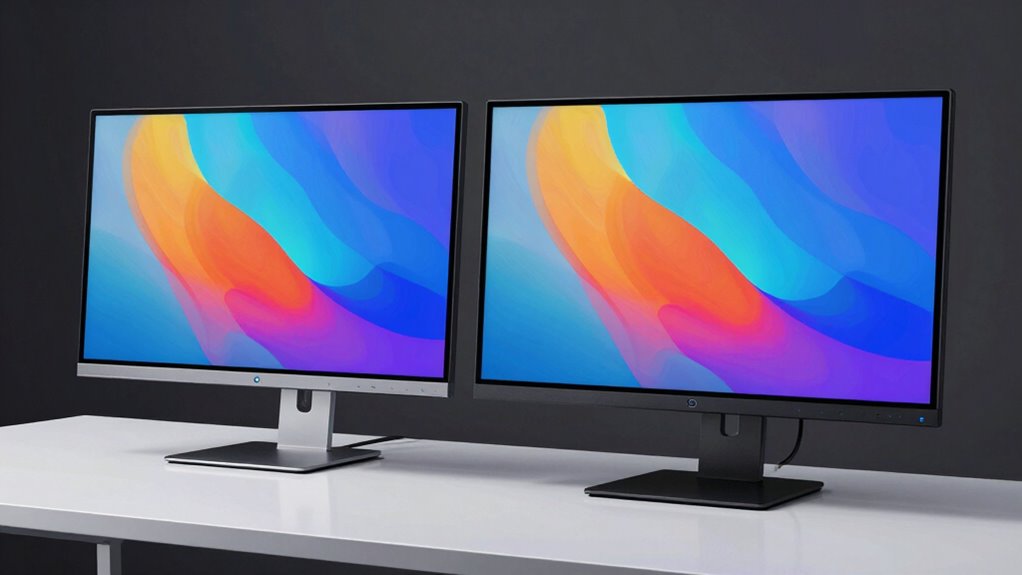
When choosing a monitor for your setup, understanding the differences between Thunderbolt and USB-C technologies can help you make an informed decision. While both interfaces use the same reversible connector, they differ markedly in capabilities, especially when it comes to graphics performance and device compatibility. Thunderbolt, particularly Thunderbolt 3 and 4, offers faster data transfer rates—up to 40 Gbps—making it ideal for high-performance tasks like video editing, 3D rendering, and gaming. This speed translates into smoother graphics performance and reduced latency, which is essential when you’re working with demanding visual applications. USB-C, on the other hand, provides versatile connectivity that works well for many everyday tasks, but its data transfer rate maxes out at 10-20 Gbps depending on the version, which can limit performance in graphics-intensive scenarios.
Device compatibility is another key distinction. Thunderbolt monitors tend to work seamlessly with a broader range of high-end peripherals, including external GPUs, daisy chaining multiple devices, and advanced docking stations. If you’re a professional who needs to connect multiple high-bandwidth devices simultaneously, a Thunderbolt monitor can simplify your setup and guarantee maximum performance. USB-C monitors are more widely compatible with a diverse array of laptops, tablets, and smartphones, especially since many modern devices now include USB-C ports. However, the full feature set—like power delivery, video output, and data transfer—may vary depending on whether your device supports Thunderbolt or just standard USB-C.
When considering graphics performance, a Thunderbolt monitor can leverage the higher bandwidth for richer visuals, faster refresh rates, and better color accuracy, which are critical for creative professionals. USB-C displays, while capable of delivering good image quality, might fall short if you’re pushing the limits of graphics-intensive applications. Compatibility-wise, if your device supports Thunderbolt, choosing a Thunderbolt monitor guarantees you’ll get the most out of your hardware’s capabilities. compatibility with high-end peripherals is an important factor to consider when selecting your monitor type. Additionally, device versatility can be enhanced with Thunderbolt’s ability to connect multiple peripherals and external displays through daisy chaining. Moreover, understanding the connection standards can help you optimize your setup for future upgrades. Furthermore, staying informed about upcoming technology developments can prepare you for future compatibility and performance enhancements.
Ultimately, your choice hinges on your specific needs. If you prioritize maximum graphics performance and device compatibility with high-end peripherals, a Thunderbolt monitor is the better investment. If you want broad compatibility and a simpler connection for everyday use, a USB-C monitor offers plenty of value. Knowing these differences ensures you select a monitor that aligns with your workflow, avoiding frustration and maximizing your setup’s potential.

Dell 27 Monitor S2725QC, 4K UHD IPS, 120Hz, 99% sRGB, 4ms, FreeSync Premium
- Blue Light Reduction: Reduces blue light emissions for comfort
- High Refresh Rate: 120Hz refresh rate with FreeSync Premium
- Fast Response Time: 4ms response time for smooth visuals
As an affiliate, we earn on qualifying purchases.
As an affiliate, we earn on qualifying purchases.
Frequently Asked Questions
Can Both Monitors Support Daisy Chaining?
Yes, both monitors can support daisy chaining, but their display compatibility varies. Thunderbolt monitors typically handle daisy chaining better due to their advanced display capabilities. USB-C monitors may support daisy chaining if they use DisplayPort Multi-Stream Transport (MST). Cable flexibility is vital—Thunderbolt cables often provide more reliable daisy chaining, while USB-C cables offer broader compatibility, but you should check each monitor’s specifications to confirm support.
What Are the Main Differences in Data Transfer Speeds?
Think of data transfer speeds like a busy highway—Thunderbolt’s lane is a superhighway, reaching speeds up to 40Gbps, while USB-C’s lane is a scenic route, maxing out around 10-20Gbps. With faster speeds, Thunderbolt guarantees smoother image quality and quicker connectivity options, making your workflow seamless. USB-C offers solid speeds but might lag behind for demanding tasks, so choose based on whether your focus is on top-tier performance or versatility.
Are Thunderbolt Monitors More Future-Proof Than USB-C Ones?
Yes, Thunderbolt monitors are more future-proof than USB-C ones, but you should consider compatibility issues. Thunderbolt offers faster data transfer and supports higher display resolutions, making it a better long-term investment. Plus, it provides more accessory options, like daisy chaining multiple devices. However, make sure your computer supports Thunderbolt, as compatibility issues can arise. If future-proofing is your goal, a Thunderbolt monitor is the smarter choice.
Do They Require Different Power Sources or Adapters?
They do require different power sources or adapters. Remember, “you get what you pay for,” so power compatibility and adapter requirements vary between Thunderbolt and USB-C monitors. Thunderbolt monitors often need more power and might include specialized adapters, while USB-C monitors generally draw power through the same port. Check each monitor’s specifications to verify you have the right power setup, preventing compatibility issues down the line.
Is There a Significant Cost Difference Between the Two?
You might find a significant cost difference between Thunderbolt and USB-C monitors, mainly due to display resolution and compatibility issues. Thunderbolt monitors often offer higher resolutions and faster data transfer, which can drive up the price. USB-C models tend to be more affordable and widely compatible with various devices. However, if you need ultra-high resolution or specific compatibility, investing in a Thunderbolt monitor might be worth the extra cost.

MNN 15.6" FHD 60Hz Portable Monitor USB-C HDMI IPS HDR Gaming Laptop
- High-Resolution Display: 15.6-inch 1920×1080 IPS screen
- Wide Viewing Angle: 178° full viewing angle support
- Eye-Care Technology: Reduces blue light and flickering
As an affiliate, we earn on qualifying purchases.
As an affiliate, we earn on qualifying purchases.
Conclusion
In the battle between Thunderbolt and USB-C monitors, you’re not just choosing a cable—you’re selecting a gateway to future-proof tech. While Thunderbolt offers lightning-fast data and power, USB-C provides versatility and widespread compatibility. It’s like choosing between a rocket and a trusty car. Whichever you pick, remember, this decision shapes your entire setup. So, take the plunge and elevate your workspace—because with the right monitor, you could transform your desk into the command center of the universe!

Thunderbolt 5 USB-C USBC Docking Station, Data Transfer & Monitor Cable
- Device Compatibility: Works with Thunderbolt 3/4/5 devices
- Supported Devices: Compatible with MacBook, Dell, HP, Samsung
- Data Transfer Speed: Up to 120Gb/s with Thunderbolt 5
As an affiliate, we earn on qualifying purchases.
As an affiliate, we earn on qualifying purchases.

SANSUI 32 Inch Curved 240Hz Gaming Monitor High Refresh Rate, FHD 1080P
- Screen Size and Curvature: 32 Inch 1500R curved display
- Refresh Rate: 240Hz high refresh rate
- Resolution: Full HD 1080P resolution
As an affiliate, we earn on qualifying purchases.
As an affiliate, we earn on qualifying purchases.