
Choosing between HDMI and DisplayPort depends on your setup. If you’re connecting a TV, gaming console, or media device, HDMI is usually best because of its wide compatibility and features like eARC. For high-performance PCs or multi-monitor setups, DisplayPort offers higher bandwidth and multi-stream capabilities. Each standard has different strengths, so understanding your device needs makes sure you pick the right cable. Keep exploring to discover which option suits you best.
Key Takeaways
- Choose HDMI for most home entertainment devices, like TVs and gaming consoles, due to its broad compatibility and features.
- Opt for DisplayPort if you need high bandwidth for 4K/8K gaming, professional graphics work, or multi-monitor setups.
- Consider device ecosystems: HDMI is standard on consumer electronics, while DisplayPort is common on high-end PCs and monitors.
- Use adapters when connecting different standards, but ensure the adapter supports your desired resolution and refresh rate.
- For future-proofing high-resolution and high-refresh-rate displays, prioritize the latest versions like HDMI 2.1 or DisplayPort 2.0.

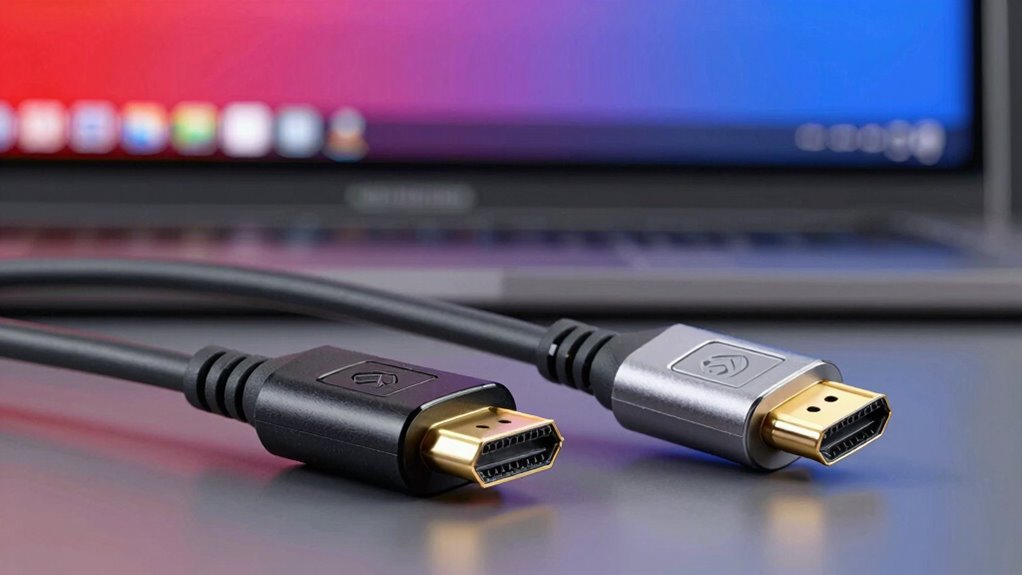
UGREEN 8K HDMI 2.1 Cable 48Gbps 6.6FT, Certified Ultra High Speed HDMI Cord Aluminum, 4K@240Hz 120Hz 10K 8K@60Hz, HDCP 2.2&2.3, eARC HDR 10 Dolby Compatible with PS5/Blu-ray/Roku TV/Switch 2/Mac mini
Real 8K HDMI certified cable: The HDMI cables pass HDMI 2.1 Certified. The HDMI Cable delivers 10K 8K@60Hz…
As an affiliate, we earn on qualifying purchases.
As an affiliate, we earn on qualifying purchases.
Overview of HDMI and DisplayPort Technologies
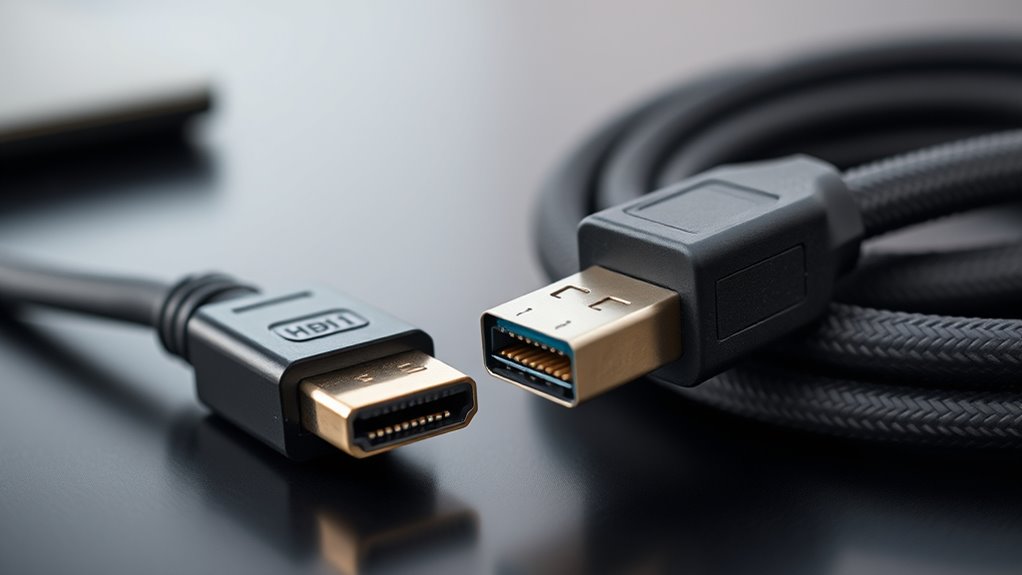
HDMI and DisplayPort are two of the most common connection standards used for transmitting high-quality audio and video signals between devices. HDMI, short for High-Definition Multimedia Interface, is widely used in TVs, gaming consoles, and home entertainment systems. It supports a range of resolutions and features, making it versatile for consumer electronics. DisplayPort, on the other hand, was developed primarily for computers and professional setups. It offers high bandwidth capabilities and is often preferred for high-resolution monitors and multi-display configurations. Both standards transmit digital signals directly, ensuring minimal signal loss and high fidelity. While they share similarities, their designs cater to different use cases, with HDMI focusing on consumer electronics and DisplayPort emphasizing computer and professional applications.
![Cable Matters [VESA Certified] 80Gbps DisplayPort 2.1 Cable - 6.6ft / 2m, DP80 Cable with 16K 60Hz, 8K 240Hz, 4K 240Hz, FreeSync, G-SYNC and HDR for Gaming Monitor, PC, RTX 4080/4090, RX 7900, Black](https://m.media-amazon.com/images/I/41jZywVptuL._SL500_.jpg)
Cable Matters [VESA Certified] 80Gbps DisplayPort 2.1 Cable – 6.6ft / 2m, DP80 Cable with 16K 60Hz, 8K 240Hz, 4K 240Hz, FreeSync, G-SYNC and HDR for Gaming Monitor, PC, RTX 4080/4090, RX 7900, Black
16K or 8K Stunning Resolution: Step into the future of DisplayPort connectivity with this DP80 cable; Display Port…
As an affiliate, we earn on qualifying purchases.
As an affiliate, we earn on qualifying purchases.
Video and Audio Capabilities
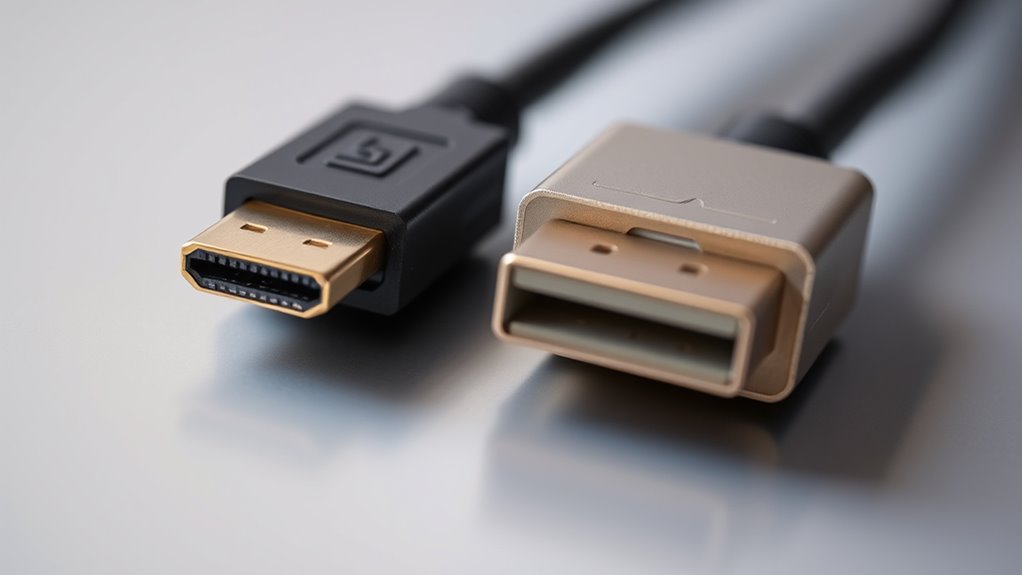
Both HDMI and DisplayPort deliver high-quality video and audio signals, but they differ in their capabilities and support for advanced features. HDMI generally handles consumer electronics well, supporting formats like Dolby TrueHD and DTS-HD Master Audio. DisplayPort, on the other hand, excels in computer setups with support for multi-stream transport (MST), allowing multiple displays from a single port. Here’s a quick comparison:
| Feature | HDMI | DisplayPort |
|---|---|---|
| Max Audio Channels | Up to 32 channels | Up to 8 channels |
| Audio Formats | Dolby, DTS, Dolby Atmos | Dolby, DTS, uncompressed audio |
| Video Bandwidth | Up to 48 Gbps (latest versions) | Up to 32.4 Gbps |
| Multi-Display Support | Limited | Supports multiple displays |
Your choice depends on your need for advanced audio or multi-monitor setups.

RUUPRRN 4K@60Hz DisplayPort to Dual DisplayPort Splitter Adapter, Display Port Splitter for Dual Monitors, DP 1.4 Splitter 1 in 2 Out, Displayport MST Hub for PC, Graphics Card, NVIDIA, AMD
【1-in-2-out monitor splitter】: This displayport splitter supports dual monitors, distributing one 4K/8K DisplayPort signal source to two DisplayPort…
As an affiliate, we earn on qualifying purchases.
As an affiliate, we earn on qualifying purchases.
Resolution and Refresh Rate Support

When comparing HDMI and DisplayPort, you need to contemplate their maximum resolution capabilities and refresh rate limits. These factors determine how well your display performs at high settings and future-proofing your setup. Understanding these points helps you choose the right connection for your gaming, editing, or general use needs.
Maximum Resolution Capabilities
Understanding the maximum resolution and refresh rate capabilities of your display connection is essential for peak visual performance. HDMI and DisplayPort each support high resolutions, but their limits differ. HDMI 2.1 can handle up to 10K resolution at 120Hz, making it suitable for ultra-high-definition displays. DisplayPort 2.0 pushes even further, supporting up to 16K at 60Hz with HDR or 10K at 60Hz without HDR. These capabilities ensure you can enjoy sharp images at high frame rates, ideal for gaming, professional work, or immersive media. Keep in mind that achieving these maximum resolutions depends on your cable, graphics card, and monitor compatibility. Choosing the right standard guarantees you’re not limited by your connection when aiming for the highest visual fidelity.
Refresh Rate Limitations
While high resolution is important, the refresh rate support of your connection can substantially impact your visual experience. Higher refresh rates provide smoother motion, especially during fast-paced gaming or videos. Here’s what you need to know:
- HDMI 2.0 supports up to 60Hz at 4K resolution, limiting smoothness for gamers.
- DisplayPort 1.4 handles up to 120Hz at 4K, offering better motion clarity.
- HDMI 2.1 can deliver 120Hz or higher at 4K and even 8K, catering to high-end gaming and professional use.
Your choice depends on your display’s refresh rate needs and whether you prioritize smoother visuals or higher resolution. Always verify your device’s capabilities before choosing a cable standard.
Future Compatibility Considerations
As display technology continues to evolve, compatibility with future resolution and refresh rate standards becomes increasingly important. Both HDMI and DisplayPort are advancing to support higher resolutions and faster refresh rates. HDMI 2.1 now supports 8K at 60Hz and 4K at 120Hz, while DisplayPort 2.0 pushes even further, offering up to 16K at 60Hz with HDR. Consider your future needs; if you plan to upgrade to ultra-high-resolution displays, guarantee your cable and port support these standards. Here’s a quick comparison:
| Feature | HDMI | DisplayPort | Future Potential |
|---|---|---|---|
| Max Resolution | 8K @ 60Hz | 16K @ 60Hz | Higher than current limits |
| Refresh Rate | Up to 120Hz | Up to 240Hz | Faster refresh rates |
| HDR Support | Yes | Yes | Improved HDR standards |
Choosing the right cable ensures you’re ready for upcoming display advances.
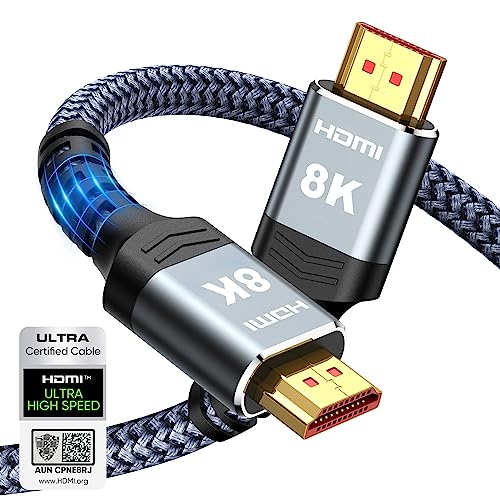
Highwings 8K 10K 4K HDMI Cable 48Gbps 6.6FT/2M, Certified Ultra High Speed 2.1 HDMI Cable Braided Cord-4K@120Hz 8K@60Hz, DTS:X, HDCP 2.2 & 2.3, HDR 10 Compatible with DVD Player/PS5/HDTV/Blu-ray
Top Technology–8K@60HZ: This 8K Ultra-High Speed HDMI Cable 2.1 uses the most cutting-edge technology, which is compatible with…
As an affiliate, we earn on qualifying purchases.
As an affiliate, we earn on qualifying purchases.
Compatibility With Devices and Platforms

When choosing between HDMI and DisplayPort, considering device and platform compatibility is vital. Your choice impacts how easily you connect your gear and guarantees ideal performance. Here are key points to examine:
- Device Support: HDMI is widely compatible with TVs, gaming consoles, and streaming devices, making it perfect for entertainment setups. DisplayPort primarily works with PCs and monitors, especially those supporting high refresh rates and resolution.
- Platform Compatibility: HDMI is standard on most consumer electronics, whereas DisplayPort is common on desktops and high-end monitors. Compatibility varies across platforms, so check your device specifications.
- Adapters and Converters: HDMI-to-DisplayPort adapters exist but may have limitations like reduced refresh rates or resolution. Verify compatibility before purchasing to avoid connectivity issues.
Choosing the right cable depends on your device ecosystem and platform needs.
Cable Lengths and Signal Integrity
Cable length can considerably impact signal quality, especially over longer distances. With HDMI, signals start degrading beyond 15 meters without active boosters or repeaters, leading to potential image flickering or loss. DisplayPort cables tend to maintain signal integrity over similar lengths, but quality varies by cable type and version. For shorter runs, both standards deliver reliable performance, but as distances grow, signal attenuation becomes a concern. Active cables or external extenders can help extend the range for either standard without sacrificing quality. Keep in mind that thicker or higher-quality cables often support longer distances better. When planning your setup, choose cables within recommended length limits and consider signal boosters if you need to cover longer distances without degrading picture or sound quality.
Additional Features and Secure Data Transfer
Both HDMI and DisplayPort offer advanced features that enhance your multimedia experience, including support for high refresh rates, HDR, and audio return channels. When it comes to additional features and secure data transfer, both standards provide unique capabilities.
Here are three key points to contemplate:
- Encryption: HDMI uses HDCP for secure content protection, preventing unauthorized recording. DisplayPort also employs HDCP, ensuring secure transmission of protected content.
- Daisy-Chaining: DisplayPort supports Multi-Stream Transport (MST), allowing you to connect multiple monitors through a single port, streamlining your setup.
- Data Security: Both standards prioritize secure data transfer, making sure your content stays protected during transmission, whether you’re streaming or gaming.
Your choice depends on your need for secure data transmission and specific features like daisy-chaining.
Cost and Availability of Cables and Adapters
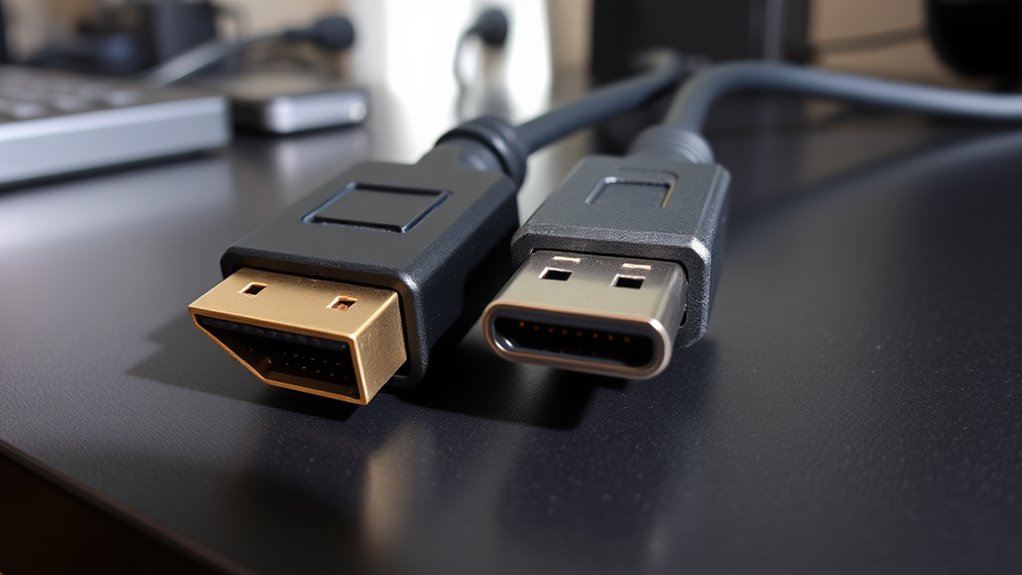
You’ll notice that HDMI cables tend to be more affordable and widely available, making them easier to find for most setups. DisplayPort adapters can sometimes be pricier and less common, especially for specific configurations. Considering your needs, it’s important to compare costs and compatibility before making a choice.
Price Comparisons
When comparing the costs of HDMI and DisplayPort, you’ll find that prices for cables and adapters vary based on quality, length, and brand. Generally, HDMI cables tend to be slightly more affordable, especially for basic models. However, high-end DisplayPort cables with advanced features can be comparable in price. Here are some key points to examine:
- Basic HDMI cables often start around $5–$10 for short, standard versions.
- Premium or longer cables, regardless of type, can cost $20–$50.
- Adapter prices vary widely, with simple HDMI-to-DisplayPort adapters typically costing $10–$30, while more robust options can be more expensive.
Adapter Compatibility
Since compatibility between HDMI and DisplayPort often depends on the availability of suitable adapters and cables, it’s important to contemplate their cost and accessibility. You may need adapters if your devices use different standards, which can vary in price and availability. Basic passive adapters are usually affordable and easy to find, but active adapters that convert signals can be more expensive. Availability depends on your location and demand, so you might face delays or limited options. To help you decide, here’s a quick comparison:
| Adapter Type | Cost Range | Accessibility | Notes |
|---|---|---|---|
| Passive Adapter | $10 – $30 | Widely available | Suitable for same-version devices |
| Active Adapter | $30 – $80 | Moderate supply | Better for high-res or long-distance |
| HDMI-to-DisplayPort | $20 – $60 | Limited | May require specific versions |
| DisplayPort-to-HDMI | $20 – $60 | Limited | For multi-monitor setups |
Choosing the Right Standard for Your Needs
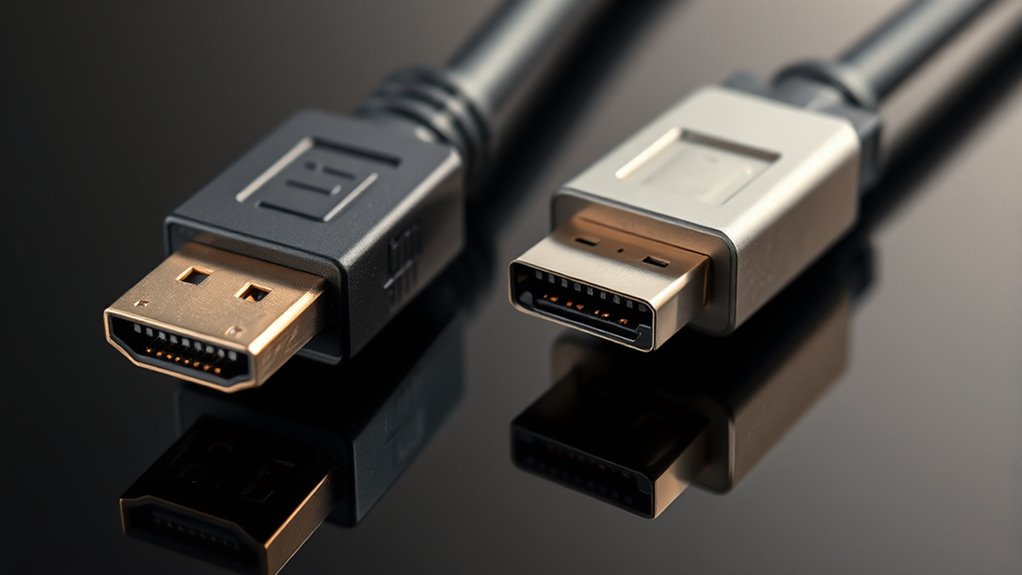
Choosing the right standard depends on your specific needs and setup. First, consider your display resolution and refresh rate. If you need 4K at 120Hz or higher, DisplayPort often offers better bandwidth. Second, think about your device compatibility. Some gaming PCs and monitors favor DisplayPort, while TVs and media devices favor HDMI. Third, evaluate future-proofing; HDMI 2.1 supports features like eARC and variable refresh rate, making it ideal for evolving tech. Additionally, if you plan to connect multiple screens, DisplayPort’s daisy-chaining can simplify your setup. Conversely, HDMI is more common for home entertainment, offering broad device compatibility. Match your priorities—like high refresh rates, device compatibility, or multimedia features—to choose the standard that best fits your needs.
Frequently Asked Questions
Can HDMI or Displayport Support 8K Resolution?
Yes, both HDMI and DisplayPort can support 8K resolution. HDMI 2.1 offers up to 48 Gbps bandwidth, enabling 8K at 60Hz with HDR, while DisplayPort 1.4 can handle 8K at 60Hz using DSC (Display Stream Compression). To get the best experience, verify your cables and devices are compatible with these standards. Check your hardware specifications to confirm support for 8K resolution before purchasing.
Which Standard Offers Better Latency for Gaming?
DisplayPort generally offers lower latency than HDMI, making it better suited for gaming. You’ll notice faster response times and less input lag when using DisplayPort, especially with high refresh rates and 4K or higher resolutions. HDMI has improved over the years, but for the most responsive gaming experience, especially with high-end setups, sticking with DisplayPort gives you that edge in speed and performance.
Are There Compatibility Issues With Older Devices?
You might face compatibility issues with older devices when using newer HDMI or DisplayPort cables. Older gadgets may lack the necessary ports, support for higher resolutions, or advanced features. You’ll need adapters, or you might find that certain cables don’t work at all. To avoid frustration, double-check your device’s specifications and choose cables that match their older standards or include compatible adapters for seamless connectivity.
Can I Use Adapters to Connect HDMI to Displayport?
Yes, you can use adapters to connect HDMI to DisplayPort. However, keep in mind that active adapters are often necessary, especially when converting from HDMI to DisplayPort, because passive adapters usually only work in one direction. Make sure to choose a high-quality adapter compatible with your devices to guarantee proper signal transmission. Also, check your device specifications to avoid compatibility issues and get the best performance.
Do HDMI and Displayport Support HDR and Other Video Enhancements?
Think of HDMI and DisplayPort as different engines powering your display. Both support HDR and other video enhancements, but HDMI generally offers broader compatibility with TVs and streaming devices, while DisplayPort is favored for high-end PC monitors. If you want vibrant colors and sharp images, both are good options—just check your device’s specifications. So, yes, both standards support HDR, but your choice depends on your setup and needs.
Conclusion
So, which cable will you choose? Will HDMI’s widespread compatibility suit your setup, or does DisplayPort’s advanced features offer the edge you need? Think about your devices, resolution needs, and future-proofing. The decision isn’t just about specs—it’s about unleashing the full potential of your entertainment or work setup. Make the right choice now, but remember, the right cable might just change everything you thought you knew about connecting your world.