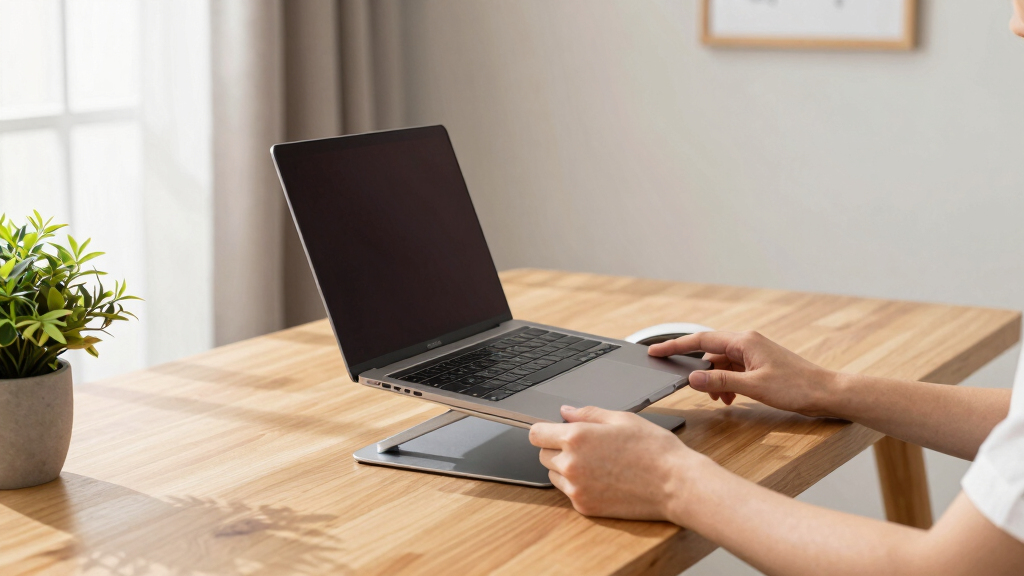

This guide shows how to select and set up an ergonomic laptop stand to improve your posture while working. It’s suitable for beginners and takes about 20-30 minutes. Proper setup reduces neck and back strain, making long work sessions more comfortable.

Get comfort and recovery gear delivered free with Prime
- Fast, free delivery on millions of items
- Prime Video, Amazon Music and more included
- Member-only deals all year
Difficulty: Beginner | Time: 20-30 minutes
What You’ll Need
Tools & Materials:
- None required, but a screwdriver may be needed for some stands
Knowledge:
- Basic understanding of ergonomic principles and workspace setup
Choose a stand that supports your laptop’s size and weight. Ensure your workspace is clear for easy placement and adjustment.
Popular right now

KitchenAid Artisan Series 5-Quart Tilt-Head Stand Mixer, Dried Rose (KSM150PS)

Shark Navigator Robot Vacuum with 30-Day Self-Emptying Base, White (AV2110S)

LG C2 Series 65-Inch OLED evo 4K Smart TV (OLED65C2PUA, 2022)
As an affiliate, we earn on qualifying purchases.
Before You Start
Measure your laptop’s dimensions and consider your typical working height. Be aware of your current posture issues to select the most suitable stand type (fixed, adjustable, folding). Make sure your workspace is clean and free of clutter.
Step-by-Step Instructions
Step 1: Select the appropriate ergonomic stand
Choose a stand that elevates your laptop screen to eye level and allows for proper airflow. Opt for adjustable stands if you need flexibility for different tasks or users.
Tip: Check the weight capacity and stability of the stand before purchase, especially for larger laptops.
Check: The stand fits your laptop securely and raises the screen to your eye level without wobbling.
Step 2: Assemble the stand if necessary
Follow the manufacturer’s instructions to assemble the stand. Use tools if required, ensuring all parts are securely tightened.
Tip: Double-check all connections to prevent wobbling or collapse during use.
Check: The assembled stand is stable and ready for your laptop.
Step 3: Place your laptop on the stand
Position your laptop securely on the stand, ensuring it sits flat and stable. Adjust any adjustable components for a snug fit.
Tip: Use non-slip pads or a rubber mat if your stand or laptop is slippery.
Check: Laptop is stable, not wobbling, and the screen is at eye level when seated normally.
Step 4: Adjust the height and angle
Set the stand’s height so that your eyes are level with the top of the screen. Tilt the laptop slightly if adjustable to reduce glare and optimize viewing angle.
Tip: Use a separate keyboard and mouse to maintain proper wrist posture if the laptop’s keyboard position is too low or high.
Check: Your neck remains straight, and you can view the screen without tilting your head up or down.
Step 5: Position your workspace ergonomically
Arrange your keyboard, mouse, and monitor (if using external) so your elbows are close to your body and wrists are straight. Keep your feet flat on the floor and back supported.
Tip: Adjust your chair height if necessary to maintain a 90-degree bend at your knees and hips.
Check: Your overall posture is upright, with minimal strain on your neck, shoulders, and back.
Common Mistakes to Avoid
- Raising the laptop too high or too low — Use an adjustable stand or measure your eye level to set the correct height.
- Ignoring external keyboard and mouse to compensate for poor stand height — Use external peripherals to maintain proper wrist and arm posture.
- Choosing a stand that wobbles or is unstable — Test stability before use and select stands with non-slip bases or rubber pads.
Troubleshooting
Problem: The laptop wobbles on the stand
Solution: Check for uneven surfaces or add non-slip pads underneath the stand or laptop.
Problem: The stand is too high or low after adjustment
Solution: Readjust the height or tilt, or select a different stand with better adjustability.
Problem: Your neck still feels strained
Solution: Re-evaluate the screen height and angle, ensuring your eyes are aligned with the top third of the screen.
What Success Looks Like
You have successfully set up the stand when your laptop screen is at eye level, your posture is upright, and you feel minimal neck or back strain during use.
Next Steps
Regularly check and adjust your setup for comfort. Use ergonomic accessories like a separate keyboard and mouse. Take short breaks to stretch and prevent strain. Consider adding an anti-glare screen filter if glare is an issue.
Frequently Asked Questions
Can I use any stand with my laptop?
Choose a stand that fits your laptop’s size and weight, and supports adjustable height if possible for better ergonomics.
Is an adjustable stand better than a fixed one?
Yes, adjustable stands offer more flexibility to set the ideal height and angle for your ergonomic needs.
Do I need external peripherals when using a laptop stand?
Using an external keyboard and mouse helps maintain proper wrist and arm posture while your laptop is elevated.
How often should I adjust my setup?
Adjust your setup whenever you change tasks, or if you experience discomfort or strain, to keep your posture optimal.