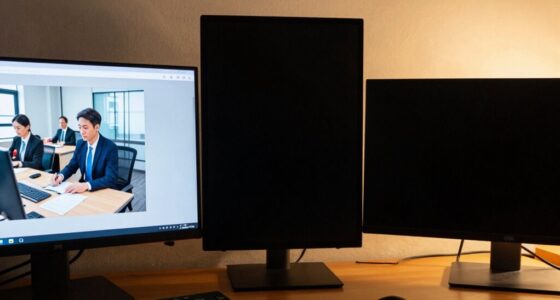
To improve your monitor’s color without fancy tools, start by adjusting its built-in controls for brightness, contrast, and color temperature—aim for around 6500K for neutral tones. Use free online test images and calibration tools to fine-tune your settings based on visual comparisons. Confirm your room has good, consistent lighting to prevent color distortions. Keeping these simple steps in mind allows you to achieve better color accuracy; explore further tips to perfect your calibration process.
Key Takeaways
- Use built-in monitor controls to adjust brightness, contrast, and color temperature for improved accuracy.
- Utilize free online test images and calibration tools to fine-tune colors without specialized hardware.
- Calibrate in a well-lit, neutral environment to ensure consistent color perception and avoid distortions.
- Regularly revisit and tweak your settings to maintain accurate colors over time.
- Keep ambient lighting steady and avoid reflections for clearer, more accurate visual calibration.
You don’t need expensive software or complex tools to improve your colors; simple techniques can make a notable difference. One of the most effective ways to do this is through monitor calibration, which directly impacts your color accuracy. When your monitor is properly calibrated, you’ll see colors more true to life, making your work more precise and your viewing experience more enjoyable. Luckily, you don’t need to invest in costly calibration devices to get decent results—just a few straightforward steps can help you achieve better color representation.
Simple, budget-friendly tips can significantly enhance your monitor’s color accuracy and visual quality.
Start by adjusting your monitor’s built-in settings. Most screens have basic controls for brightness, contrast, and color temperature. Set the brightness so it’s comfortable for your eyes without washing out the colors. Then, tweak the contrast to ensure whites are crisp and blacks are deep, without losing detail in darker areas. The color temperature setting is vital for color accuracy; typically, a setting around 6500K offers a neutral, daylight-like tone that provides a good baseline for accurate colors. These adjustments alone can considerably improve how your monitor displays colors, giving you a more trustworthy visual environment.
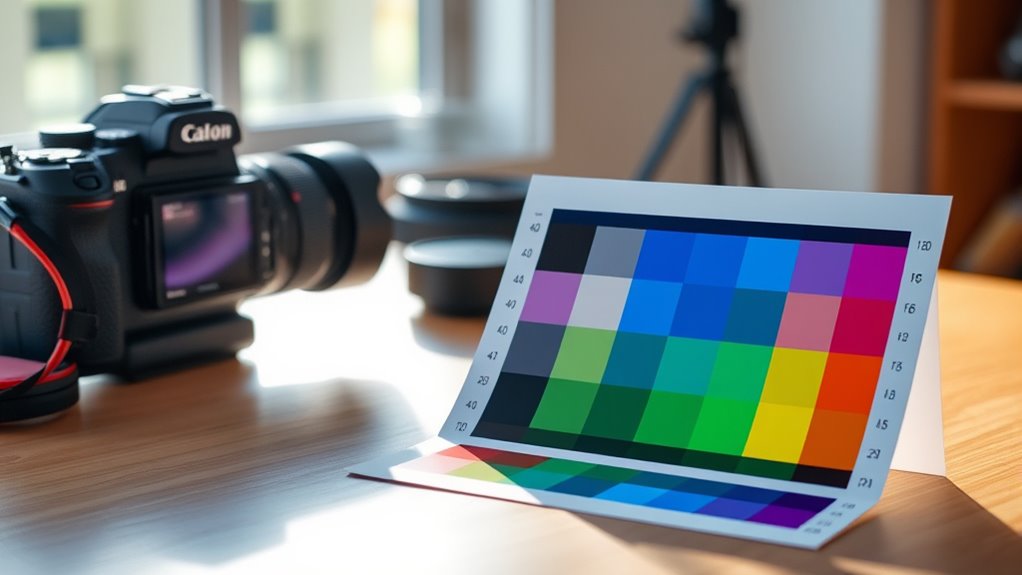
Next, you can use free online calibration tools and test images to fine-tune your display. Many websites offer simple test patterns designed to help you evaluate and adjust your monitor’s color balance, gamma, and contrast. By comparing these test images with your screen, you can identify areas where colors appear off and make small tweaks to your monitor’s settings. This process isn’t as precise as professional calibration hardware, but it’s surprisingly effective for everyday use and ensures better color accuracy without any extra expense.
It’s also worth noting that ambient lighting plays a role in how you perceive colors on your screen. Dim or uneven lighting can distort your view, making colors look different than they truly are. To optimize your calibration efforts, work in a well-lit room with consistent lighting conditions, ideally neutral in tone. Avoid direct light hitting your screen or strong reflections that can alter your perception of color.
Finally, remember that calibration isn’t a one-and-done task. Regularly revisiting these adjustments guarantees your monitor maintains accurate colors over time. If you notice your colors seem off, don’t rush to buy new tools—try re-calibrating with these simple methods first. Understanding monitor calibration is key to maintaining consistent and accurate color representation. By doing so, you’ll consistently enjoy sharper, more accurate visuals, whether you’re editing photos, designing graphics, or simply watching movies. Achieving better color without fancy tools is all about making small, deliberate changes that lead to a more faithful and vibrant display—simple, budget-friendly, and accessible.
Frequently Asked Questions
Can Calibration Improve Color Accuracy on All Types of Monitors?
Yes, calibration can improve color accuracy on all types of monitors. By calibrating your monitor, you enhance color consistency and monitor uniformity, ensuring that colors appear more accurate and consistent across the screen. Even budget or older monitors benefit from basic calibration, which helps achieve better visual fidelity. Regular calibration maintains these improvements over time, making your display more reliable for color-sensitive work or viewing enjoyment.
How Often Should I Recalibrate My Display for Optimal Results?
They say, “You are what you repeatedly do.” To keep your display looking its best, recalibrate every 4 to 6 weeks. Regular calibration not only enhances color accuracy but also supports monitor longevity. Keep in mind, software conflicts can interfere with calibration settings, so verify your calibration software is up to date. Staying consistent helps prevent issues and maintains vibrant, accurate colors over time.
What Are Common Mistakes to Avoid During Manual Calibration?
To avoid calibration pitfalls, don’t rush through the process or ignore ambient lighting, as it can cause color mismatches. Avoid relying solely on default settings; instead, make precise adjustments. Be cautious with brightness and contrast, as overcorrecting can distort colors. Don’t forget to double-check your calibration after making changes, and avoid common mistakes like using outdated reference images or skipping calibration altogether. These steps help guarantee accurate, consistent colors.
Will Calibration Affect My Monitor’s Hardware or Longevity?
Imagine carefully tuning a delicate instrument—you won’t harm it if you proceed gently. Calibration doesn’t damage your monitor’s hardware or reduce its longevity when done properly. In fact, it promotes hardware safety by preventing unnecessary strain from improper settings. Keep calibration sessions moderate and avoid excessive adjustments, and you’ll preserve your monitor’s lifespan while maintaining ideal color accuracy. Proper calibration becomes a safeguard, not a threat, to your display’s health.
Can Calibration Methods Fix Color Issues Caused by Software Settings?
Yes, calibration methods can fix color issues caused by software limitations or incorrect settings. You can manually adjust your display’s settings, such as brightness, contrast, and color balance, to improve accuracy. Be aware of hardware compatibility, as some monitors may not respond well to certain adjustments. By tweaking these software settings, you often get better color reproduction without needing fancy tools, ensuring your display looks true to life.
Conclusion
Ultimately, achieving better color doesn’t require expensive tools or complex setups. With a gentle eye and some simple adjustments, you can subtly enhance your visuals and bring out their true potential. Trust your instincts and take a mindful approach—sometimes, the most refined results come from understated efforts. By embracing this practical calibration method, you’ll find that exceptional color is well within reach, no fancy equipment necessary, just a touch of patience and a keen eye.