
If your external monitor keeps disconnecting, it could be due to loose or damaged cables, outdated drivers, or hardware issues with your graphics card or monitor. Incorrect display settings, power management options, or electrical interference from nearby devices might also cause problems. Additionally, USB port problems or software conflicts can interrupt signals. Ensuring secure connections, updating drivers, and checking hardware health can help, and there’s more you can do to troubleshoot effectively.
Key Takeaways
- Loose, damaged, or incompatible cables and ports can cause intermittent disconnections of external monitors.
- Outdated or corrupted display drivers may lead to communication issues, resulting in monitor disconnects.
- Incorrect display settings, such as unsupported resolutions or refresh rates, can trigger signal loss.
- Hardware issues like overheating, dust buildup, or failing graphics cards can disrupt monitor connections.
- External interference from wireless devices or power fluctuations can cause instability and monitor disconnections.
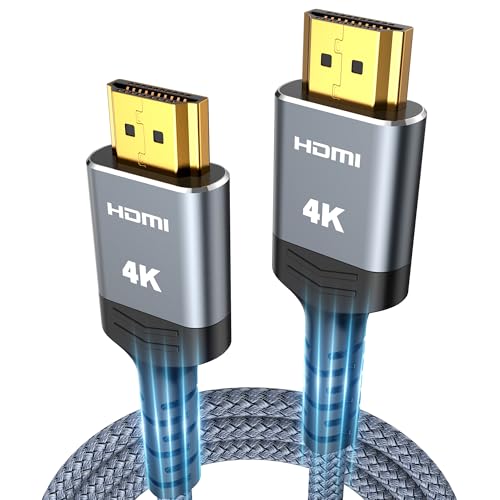
HDMI Cable 6.6 ft, Highwings 4K HDMI 2.0 Cord with High-Speed No Flickering, Nylon Braided & Gold-Plated Connectors, HDR, Ethernet, ARC, 3D, HDCP 2.2, Compatible with 4K TVs, Monitor, Streaming Device
4K UHD Transmission, Stunning Audio & Visual for Home Theater & Gaming: Enhanced with gold-plated connectors for high-speed,…
As an affiliate, we earn on qualifying purchases.
As an affiliate, we earn on qualifying purchases.
Faulty or Loose Cable Connections
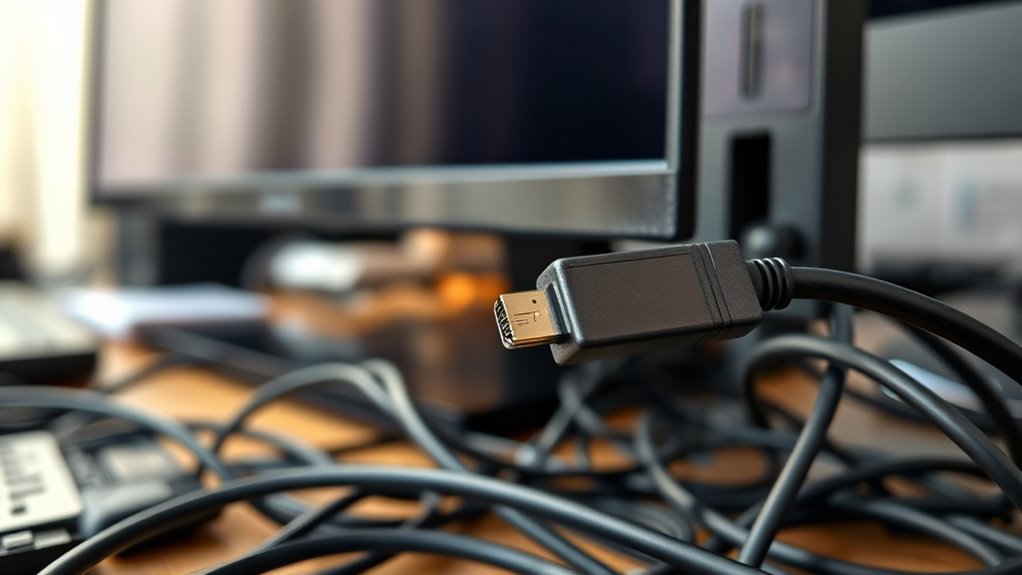
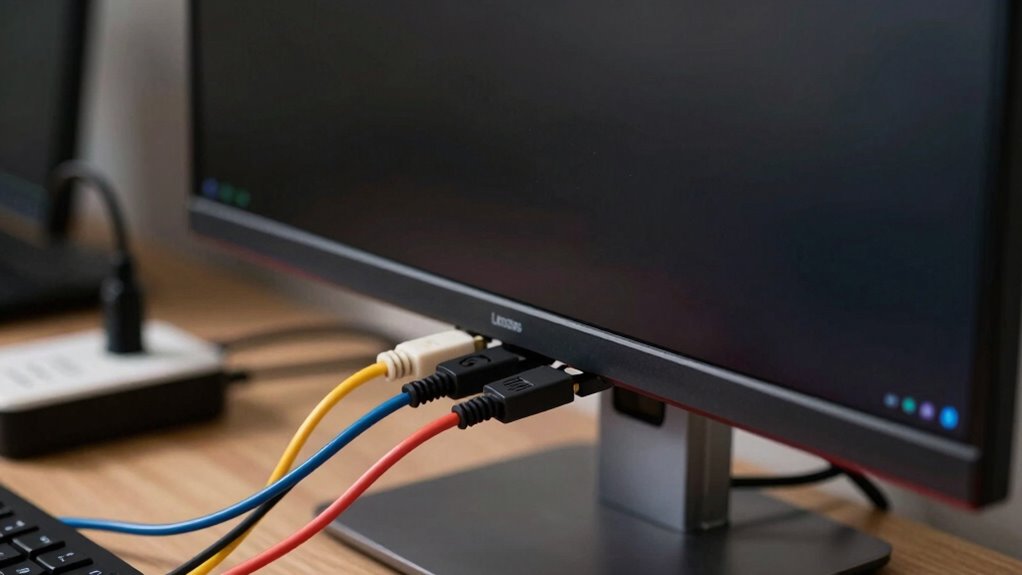
Loose or damaged cable connections are one of the most common causes of external monitor disconnections. If your monitor keeps disconnecting, start by checking all cables. Confirm the HDMI, DisplayPort, or VGA cables are securely plugged into both your computer and monitor. Sometimes, a loose connection causes intermittent signals, leading to disconnections. Inspect the cables for any visible damage like fraying or bent pins, which can disrupt the signal. If you notice any issues, replace the damaged cable. Also, try unplugging and reconnecting the cables, making sure they click into place. Using different cables or ports can help identify whether the problem lies with the cable itself or the port. Keeping cables well-maintained and firmly connected reduces the chances of disconnection issues.

IVANKY 8K DisplayPort Cable 1.4, VESA Certified DP Cable 6.6ft (8K@60Hz, 4K@144Hz, 2K@240Hz)HBR3 Support 32.4Gbps, HDR, HDCP 2.2, FreeSync G-Sync, Braided Display Port for Gaming Monitor, Graphics, PC
[VESA Certified DP to DP Cable 1.4] This 8K DisplayPort Cable 1.4(NOT HDMI) is officially certified by VESA…
As an affiliate, we earn on qualifying purchases.
As an affiliate, we earn on qualifying purchases.
Outdated or Corrupted Display Drivers
Outdated or corrupted display drivers are a common cause of external monitor disconnections. When drivers are outdated, they may not communicate properly with your monitor, causing disconnects. Corrupted drivers can have similar issues, disrupting the display connection entirely. To check, visit your device manager and see if there are any warning signs. Updating drivers often resolves these problems, either through automatic updates or manual downloads from the manufacturer’s website.
| Issue | Solution |
|---|---|
| Outdated drivers | Update via device manager or manufacturer’s site |
| Corrupted drivers | Reinstall or roll back drivers |
| Compatibility problems | Ensure driver matches your OS version |
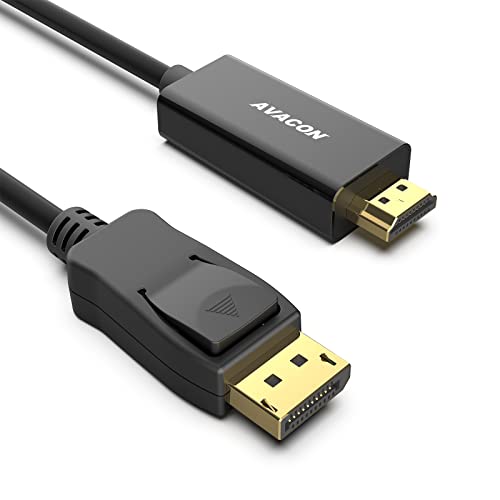
AVACON 4K DisplayPort to HDMI 6 Feet Cable, Uni-Directional DP 1.2 Computer to HDMI 1.4 Screen Gold Plated Cord for Lenovo, HP, ASUS, Dell and Other Brands
The 6 Feet Convenient Displayport male to HDMI male cable directly connects a DisplayPort (DP, DP++, DisplayPort++) equipped…
As an affiliate, we earn on qualifying purchases.
As an affiliate, we earn on qualifying purchases.
Hardware Issues With the Monitor or Graphics Card

Hardware issues with your monitor or graphics card can also cause disconnections. If your monitor has physical damage, like cracks or flickering, it might not stay connected properly. Check for loose or damaged cables, since a faulty connection can interrupt signal transmission. Overheating or dust buildup inside the monitor or graphics card can cause hardware to malfunction, leading to disconnections. Additionally, a failing graphics card might intermittently lose signal, especially under heavy load. If your graphics card is old or has visible damage, consider testing it in another system or replacing it. Sometimes, hardware conflicts or insufficient power supply can also cause issues. Regular cleaning and inspecting hardware components can help identify these problems before they cause persistent disconnection issues.

FEELWORLD F7 PRO 7 Inch Touch Screen DSLR Camera Field Monitor with 3D LUT F970 External Kit Install for Power Wireless Transmission IPS FHD1920x1200 4K HDMI Input Output 5V Type-c Input
F970 external install and power kit design can be used to install and supply power to external equipment,…
As an affiliate, we earn on qualifying purchases.
As an affiliate, we earn on qualifying purchases.
Incompatible or Incorrect Display Settings
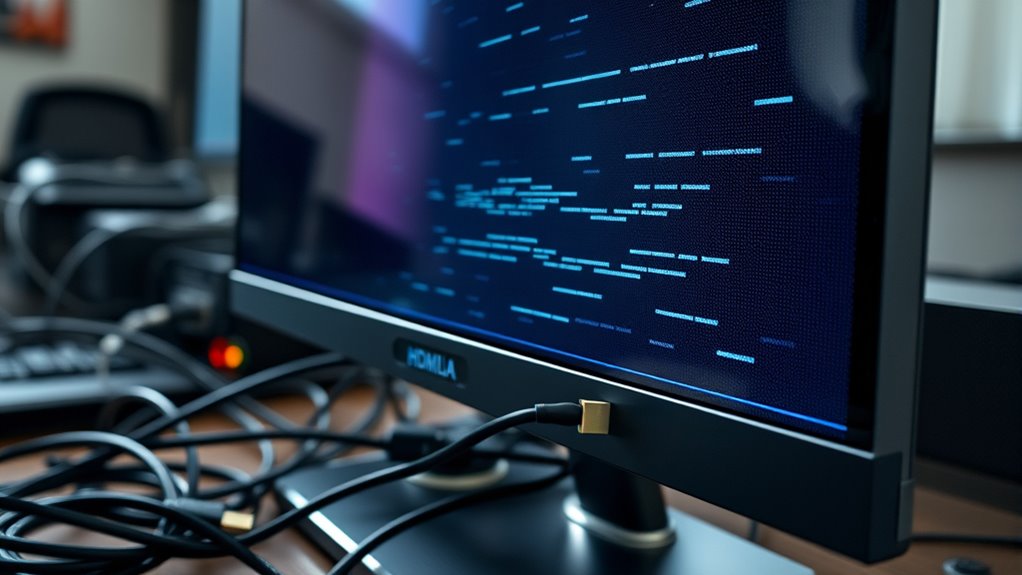
You might experience disconnections if your display settings aren’t compatible with your monitor. Resolution mismatches can cause flickering or black screens, while refresh rate conflicts may lead to instability. Checking and adjusting these settings can often resolve the issue quickly.
Resolution Mismatches Occur
Resolution mismatches often happen when display settings are incompatible or incorrectly configured, causing the monitor to appear blank, flicker, or show distorted images. If your monitor isn’t displaying properly, check the resolution settings in your display options. Setting a resolution higher than what your monitor supports can lead to flickering or no image at all. Conversely, setting it too low might make the display appear blurry or stretched. Ensuring your resolution matches the monitor’s native resolution is key for a clear picture.
- Using a resolution not supported by your monitor
- Changing resolution without updating display drivers
- Connecting to a different device with incompatible settings
Refresh Rate Conflicts
Refresh rate conflicts occur when the display settings are set to an unsupported or incompatible refresh rate, leading to flickering, screen tearing, or a blank screen. If your monitor disconnects intermittently, check the refresh rate settings in your display options. Setting a refresh rate higher than what your monitor supports can cause these issues. To fix this, match the refresh rate to your monitor’s specifications. Use the table below to identify common refresh rates and their compatible devices:
| Refresh Rate | Typical Use Case |
|---|---|
| 60Hz | Standard monitors, laptops |
| 75Hz | Gaming, smoother visuals |
| 120Hz | High-end gaming monitors |
| 144Hz | Competitive gaming |
| 240Hz | Esports, ultra-smooth gaming |
Adjusting to the correct refresh rate can help stabilize your display connection.
Power Management Settings Causing Disconnections
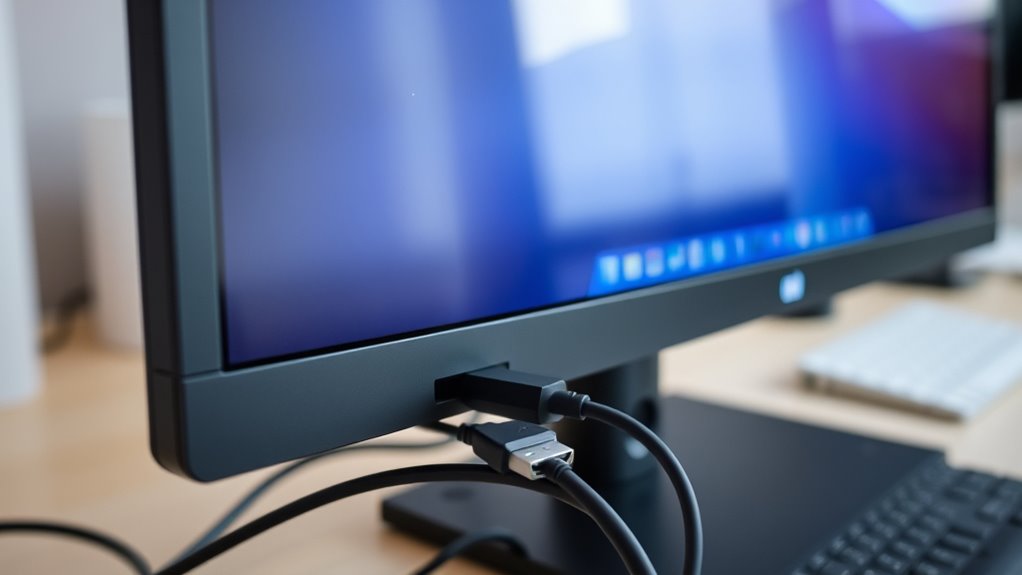
Power management settings can sometimes cause your external monitor to disconnect unexpectedly, especially when the system tries to conserve energy. Windows and macOS often turn off or reduce power to ports and connected devices to save battery life, which can interrupt your display. To fix this, check your power options and disable any settings that turn off USB or display hardware during inactivity.
- USB selective suspend settings in Windows
- Display sleep timers in system preferences
- Power-saving modes that prioritize energy efficiency over connection stability
Adjusting these settings ensures your monitor stays connected without interruption. Disabling aggressive power-saving features helps maintain a stable connection, preventing unwanted disconnections during use.
Interference From Other Electronic Devices

Other electronic devices nearby can cause your monitor to disconnect. Wireless signals, power fluctuations, and close proximity of gadgets may disrupt your display connection. Identifying and reducing these interferences can help keep your monitor stable.
Wireless Signal Interference
Wireless signal interference from other electronic devices can considerably disrupt your monitor’s connection. Devices like cordless phones, microwave ovens, and Wi-Fi routers operate on similar frequencies, which can cause signal clashes. When this happens, your monitor may disconnect intermittently or fail to establish a stable link altogether. To mitigate interference, keep your monitor and wireless devices away from potential sources of signal noise. Consider switching your Wi-Fi to a less congested channel or upgrading to dual-band routers. Additionally, using wired connections or shielded cables can help reduce interference. Recognizing these sources and taking preventive measures ensures a more reliable connection, so your external monitor stays connected without constant disruptions.
Power Fluctuations Impact
When electronic devices like refrigerators, hairdryers, or even fluorescent lights turn on or fluctuate in power, they can cause voltage spikes or dips that disrupt your monitor’s connection. These power fluctuations can lead to temporary disconnections or flickering screens. To visualize how different devices impact your power stability, consider this table:
| Device Type | Effect on Power | Recommended Action |
|---|---|---|
| High-power appliances | Voltage dips | Use dedicated outlets |
| Fluorescent lights | Fluctuations | Turn off when not in use |
| Large electronics | Spikes | Install surge protectors |
Electronic Device Proximity
Electronic devices placed too close to your monitor can cause interference that leads to disconnections or flickering screens. Wireless gadgets like smartphones, routers, or cordless phones emit electromagnetic signals that disrupt your monitor’s signal. These signals can weaken the connection, causing unstable displays or sudden disconnects. To prevent this, keep electronic devices at a reasonable distance from your monitor and its cables.
- Wireless devices transmitting signals nearby
- Microwave ovens operating during use
- Bluetooth speakers or headsets causing interference
USB or External Port Problems
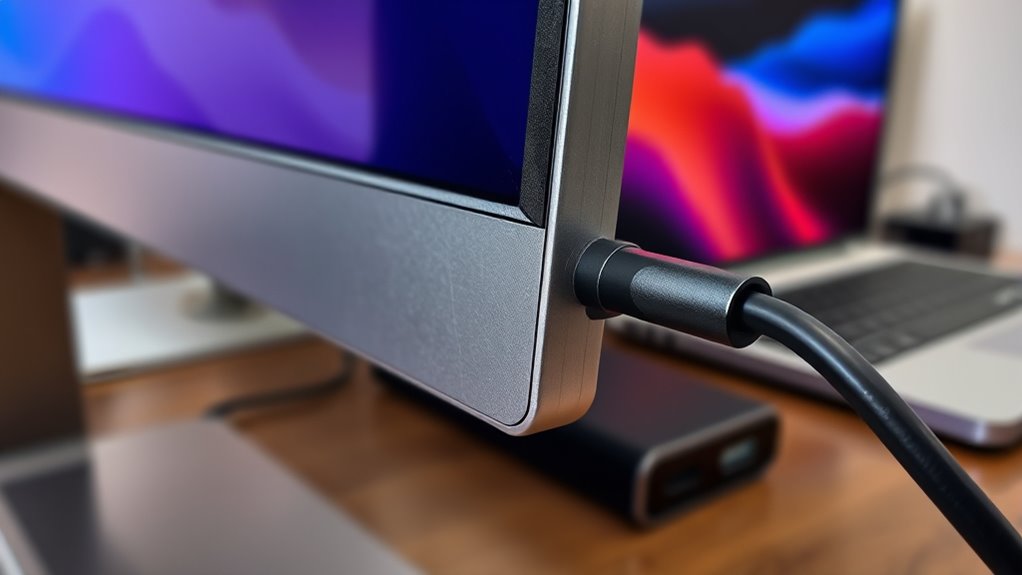
USB or external port problems are a common cause of external monitor disconnections. If your monitor keeps disconnecting, check the port connections first. Loose or damaged cables can interrupt the signal, so verify your cable is securely plugged in. Inspect the port for dust, debris, or physical damage that could interfere with proper contact. Sometimes, ports can become worn or bent, making it difficult to establish a stable connection. Try unplugging and reconnecting the cable or using a different port if available. Additionally, verify your ports and cables are compatible and support the required data transfer speeds. Updating your device drivers or firmware for your ports can also resolve underlying issues. Taking these steps helps maintain a reliable connection and prevents unnecessary disconnections.
Software Conflicts or Operating System Bugs

Software conflicts or bugs in your operating system can cause external monitor disconnections, especially after updates or system changes. These issues might stem from incompatible drivers, faulty system updates, or background processes interfering with display settings. When your OS has bugs, it may fail to recognize or properly communicate with your monitor, leading to frequent drops. To troubleshoot, check for pending updates, roll back recent system changes, or reinstall display drivers.
OS bugs can cause monitor disconnections; update drivers, roll back changes, or reinstall to fix issues.
- Outdated or corrupt display drivers
- Recent OS updates causing compatibility issues
- Background apps disrupting display functions
Overheating and Hardware Malfunctions

Overheating and hardware malfunctions can cause your external monitor to disconnect unexpectedly. When your computer or graphics card gets too hot, it can trigger safety features that shut down the display connection to prevent damage. Dust build-up, poor ventilation, or a malfunctioning cooling system can all contribute to overheating. Hardware issues like a failing graphics card or loose internal connections can also interrupt the signal. If your monitor disconnects suddenly, check your device’s temperature and clean any dust from vents or fans. Confirm your cooling system is working properly and that your hardware is secure. Replacing faulty components or updating drivers might be necessary if hardware malfunctions are the root cause. Keeping your system cool and well-maintained helps ensure a stable connection to your external monitor.
Frequently Asked Questions
Can a Faulty Power Supply Cause Monitor Disconnections?
Yes, a faulty power supply can cause your monitor to disconnect. When the power supply isn’t delivering consistent energy, your monitor may turn off or disconnect intermittently. This issue can be due to worn-out components or insufficient wattage. To fix it, check your power cable and adapter, replace any damaged parts, or upgrade to a higher wattage power supply. Ensuring steady power helps your monitor stay connected and functioning properly.
How Do I Identify Hardware Issues With My Graphics Card?
You can identify hardware issues with your graphics card by checking for visual artifacts like screen flickering or strange lines, which indicate problems. Run graphics-intensive tasks to see if the system crashes or displays errors. Use device manager to look for warning signs or outdated drivers. Also, test your card in another system if possible, and monitor temperatures to spot overheating issues that might cause malfunctions.
Do Screen Resolution Settings Affect Monitor Stability?
Screen resolution settings can be a double-edged sword, like a tightrope walk for your monitor’s stability. If you set the resolution too high for your display’s capabilities, it can cause flickering or disconnects. To keep things steady, verify your resolution matches your monitor’s native setting. Adjusting this setting may resolve connectivity problems by reducing strain on your graphics hardware, making your display experience smoother and more reliable.
Can Malware or Viruses Impact Display Connections?
Yes, malware or viruses can impact your display connections. They may corrupt system files, interfere with driver operations, or alter network settings, causing your monitor to disconnect unexpectedly. Malware can also hijack hardware functions or overload system resources, leading to instability. To prevent this, run regular scans with reputable antivirus software, keep your system updated, and avoid suspicious links or downloads that could introduce malicious software affecting your display connections.
What Role Does BIOS Firmware Play in Monitor Connectivity?
Your BIOS firmware acts as the bridge between your hardware and software, guiding how your system communicates with connected devices like monitors. If it’s outdated or corrupt, you might face connectivity issues, including disconnections. Updating your BIOS can resolve compatibility problems and improve stability. Think of it as fine-tuning your system’s foundation—without it, even the best hardware struggles to stay connected, leading to intermittent display problems.
Conclusion
If your external monitor keeps disconnecting, don’t ignore the signs. Think of your setup like a finely tuned machine—small issues can cause big disruptions. By checking cables, updating drivers, and adjusting settings, you can keep everything running smoothly. Troubleshooting may seem tricky, but with patience, you’ll find the culprit. Remember, resolving these problems is like fixing a puzzle—each piece brings your display back to life, clearer and more reliable than ever.