Place your webcam at eye level directly in front of your main screen for the best lighting and framing. Position it slightly above or in the center to avoid distortion and to keep your background tidy. Make sure your light sources come from front or side to prevent shadows and glare. Keep your setup clean and professional-looking, with enough depth behind you. Want to discover tips for optimizing your entire multi-screen workspace? Keep exploring for more insights.

Get comfort and recovery gear delivered free — and shop member deals
- Fast, free delivery on millions of items
- Access to Prime Big Deal Days deals on October 6–7
- Prime Video, Amazon Music and more included
Key Takeaways
- Position the webcam directly in front of your primary screen for optimal face-to-screen alignment.
- Place the webcam at eye level to create a natural and engaging virtual presence.
- Ensure the webcam captures your face and upper torso, avoiding cluttered backgrounds on multiple screens.
- Use a dedicated spot that minimizes glare and shadows, considering natural and artificial lighting sources.
- Maintain a consistent camera angle across screens to ensure a uniform, professional appearance.
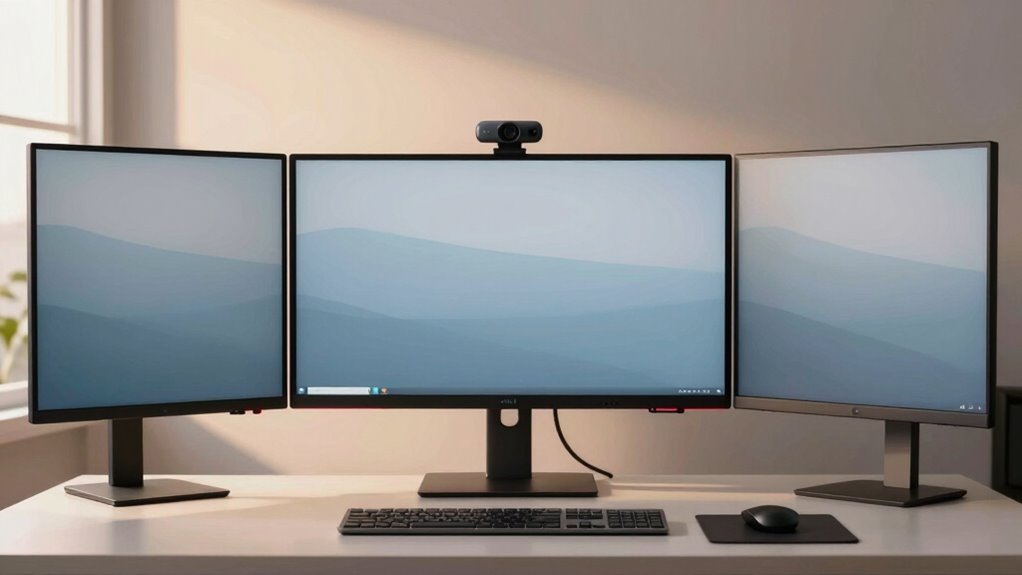
When setting up a multi-screen workspace, choosing the right spot for your webcam can greatly enhance your video calls and recordings. The placement of your webcam influences how well your lighting appears on camera and how visible your background is, both of which contribute to a professional and engaging appearance. To achieve optimal lighting placement, position your webcam at eye level, ideally directly in front of you. This way, natural or artificial light hits your face evenly, reducing harsh shadows and glare. Avoid placing your webcam too high or too low, as it can distort your proportions and make you appear unapproachable. Additionally, consider the light sources in your room. If you’re relying on natural light, set up your workspace so that the light comes from in front of or slightly to the side of you, rather than behind, which can create a silhouette effect. If you use artificial lighting, use soft, diffused light sources positioned to illuminate your face evenly, avoiding direct overhead or harsh side lighting that can cast unflattering shadows. Proper lighting setup can significantly improve your on-camera appearance and overall professionalism. Ensuring your lighting conditions are optimal can also help reduce eye strain and fatigue during long calls.
Your background visibility also depends heavily on where you position your webcam. You want your background to appear tidy and professional without distracting your viewers. Place your webcam in a spot that captures a clean, uncluttered background, ideally with elements that add visual interest without stealing focus. Avoid having busy or messy areas directly behind you, which can detract from your message. If you prefer a cleaner look, consider using a backdrop or virtual background, but ensure your webcam angle captures only what you want your audience to see. When choosing the location, think about the depth of the background. A slight distance between you and the wall behind you adds depth to your image and makes the shot more visually appealing.
Furthermore, the height and angle of your webcam influence both lighting and background visibility. Position it so that it frames your face well, with your eyes roughly one-third down from the top of the shot. This framing helps maintain a natural, engaging connection with viewers. Keep in mind that a well-placed webcam, considering lighting placement and background visibility, ensures you look your best during every video call or recording. Adjust your camera’s position until you find that perfect balance where lighting flatters and your background looks professional, making every virtual interaction more compelling.
As an affiliate, we earn on qualifying purchases.
Frequently Asked Questions
How Can I Reduce Glare on My Webcam in a Multi-Screen Setup?
To reduce glare on your webcam, adjust the camera angle so it faces away from direct light sources or reflective surfaces. Also, minimize background clutter that can cause unwanted reflections or brightness issues. Consider adding a soft, diffused light source or reposition existing lights to prevent glare. These steps help guarantee your face is well-lit without harsh reflections, making your video clear and professional.
What Lighting Is Best for Webcam Visibility Across Multiple Monitors?
Imagine your workspace as a stage, and good lighting is your spotlight. Choose soft, diffused background lighting that evenly illuminates your face without creating harsh shadows. Adjust your camera angles so that light falls naturally on your face, not from behind or the side, to avoid glare. Proper background lighting and strategic camera angles guarantee your webcam captures clear, vibrant images, making you the star of every video call.
How Do I Prevent My Webcam From Capturing Unwanted Reflections?
To prevent your webcam from capturing unwanted reflections, focus on proper camera placement. Position your webcam at eye level and avoid reflective surfaces directly behind or nearby. Clear any background clutter that might cause glare or distractions in the shot. Adjust your angle slightly if reflections persist, and consider using a matte screen or anti-reflective filter to minimize glare. These steps help guarantee a clean, professional appearance.
Should My Webcam Be Centered or Offset in a Multi-Screen Environment?
Center your webcam for a balanced, professional look, especially when working with multiple screens. Offsetting it might seem natural, but it can create awkward angles and disrupt your ergonomic setup. Proper camera positioning guarantees you’re directly facing the camera, reducing neck strain and improving eye contact. Keep your webcam aligned with your main monitor to maintain a cohesive, comfortable workspace, making your video calls more engaging and less fatiguing.
How Can I Improve Audio Quality With Multiple Screens and Webcams?
You can improve audio quality by investing in good audio equipment like a quality microphone and headphones. Use soundproofing techniques such as adding foam panels or carpets to reduce echo and background noise. Position your microphone close to your mouth, avoiding screens and webcams to prevent audio interference. Regularly test your setup, and consider using noise-canceling features or software for clearer sound during calls or recordings.
As an affiliate, we earn on qualifying purchases.
Conclusion
Finding the perfect webcam spot in a multi-screen setup can feel like searching for a needle in a haystack, but it’s worth the effort. When you position your webcam right, your video quality skyrockets, making your meetings more professional and engaging. Remember, a well-placed webcam isn’t just good—it’s your secret weapon for making a jaw-dropping impression every time. So, take the time to find that sweet spot and watch your virtual presence shine brighter than ever!
ring light for video conferencing
As an affiliate, we earn on qualifying purchases.
As an affiliate, we earn on qualifying purchases.
background blur virtual background
As an affiliate, we earn on qualifying purchases.
As an affiliate, we earn on qualifying purchases.
Fall Picks
fall essentials
As an affiliate, we earn on qualifying purchases.